Compare commits
1 Commits
| Author | SHA1 | Date | |
|---|---|---|---|
 ChrisTitusTech ChrisTitusTech
|
18b7db8b47 |
@@ -1,149 +1,119 @@
|
||||
## Contributing Code
|
||||
# How to Contribute?
|
||||
|
||||
### Before You Start
|
||||
## Testing
|
||||
|
||||
- Keep each pull request focused on a single feature or fix.
|
||||
- Avoid unnecessary formatting changes or large unrelated edits.
|
||||
- Document what changed and why in your PR description.
|
||||
* Test the latest changes to WinUtil by running the pre-release and reporting issues you are encountering to help us continually improve WinUtil!
|
||||
|
||||
---
|
||||
#### **Run the latest pre-release**
|
||||
```ps1
|
||||
irm https://christitus.com/windev | iex
|
||||
```
|
||||
|
||||
## Basic Git Workflow
|
||||
!!! bug "Keep in mind"
|
||||
|
||||
### 1. Fork the Repository
|
||||
This is a pre-release and should be treated as such. It exists for developers to test the utility and report or fix bugs before they get added to the stable release. Don't use it in production!
|
||||
|
||||
Go to the ChrisTitusTech/winutil repository on GitHub and click the Fork button in the top right corner.
|
||||
## Issues
|
||||
|
||||
<img width="171" height="50" alt="{650A4723-F38A-44A4-9820-D232BC87C8A0}" src="https://github.com/user-attachments/assets/a214f27c-2fee-444a-920f-d87b14f5896f" />
|
||||
* If you encounter any challenges or problems with the script, I kindly request that you submit them via the "Issues" tab on the GitHub repository. By filling out the provided template, you can provide specific details about the issue, allowing me (and others in the community) to promptly address any bugs or consider feature requests.
|
||||
|
||||
---
|
||||
## Contribute Code
|
||||
|
||||
### 2. Clone Your Fork
|
||||
* Pull requests are now handled directly on the **MAIN branch**. This was done since we can now select specific releases to launch via releases in GitHub.
|
||||
|
||||
```powershell
|
||||
git clone https://github.com/YOUR_USERNAME/winutil.git
|
||||
cd winutil
|
||||
* If you're doing code changes, then you can submit a PR to the `main` branch.
|
||||
|
||||
!!! warning "Important"
|
||||
|
||||
Do not use a code formatter, make massive amounts of line changes, or make multiple feature changes. EACH FEATURE CHANGE SHOULD BE IT'S OWN PULL REQUEST!
|
||||
|
||||
Do not open a pull request that adds support for other languages to WinUtil for now, until we decide how we want to move forward with language support.
|
||||
|
||||
* When creating pull requests, it is essential to thoroughly document all changes made. This includes, but is not limited to, documenting any additions made to the `tweaks` section and corresponding `undo tweak`, so users are able to remove the newly added tweaks if necessary, and comprehensive documentation is required for all code changes. Document your changes and briefly explain why you made your changes in your Pull Request Description. Failure to adhere to this format may result in the denial of the pull request. Additionally, any code lacking sufficient documentation may also be denied.
|
||||
|
||||
* By following these guidelines, we can maintain a high standard of quality and ensure that the codebase remains organized and well-documented.
|
||||
|
||||
!!! note
|
||||
|
||||
When creating a function, please include "WPF" or "WinUtil" in the file name so it can be loaded into the runspace.
|
||||
|
||||
## Walk through
|
||||
|
||||
* This is a guide for beginners. If you are still having issues, look at the following official GitHub documentation:
|
||||
* [Commit through WEB](https://docs.github.com/en/pull-requests/committing-changes-to-your-project/creating-and-editing-commits/about-commits)
|
||||
* [Commit through GitHub Desktop](https://docs.github.com/en/desktop/making-changes-in-a-branch/committing-and-reviewing-changes-to-your-project-in-github-desktop#about-commits)
|
||||
* [Create a Pull Request](https://docs.github.com/en/pull-requests/collaborating-with-pull-requests/proposing-changes-to-your-work-with-pull-requests/creating-a-pull-request)
|
||||
|
||||
|
||||
### Overview
|
||||
|
||||
``` mermaid
|
||||
%%{init: {"flowchart": {"curve": "cardinal"}} }%%
|
||||
graph TD
|
||||
A[Fork Project] --> B[Clone Repository];
|
||||
B --> C[Create New Branch];
|
||||
C --> D[Make Changes];
|
||||
D --> G[Test Changes];
|
||||
G --> H{Tests Passed?};
|
||||
H -->|Yes| E[Commit Changes];
|
||||
H -->|No| J[Fix Issues];
|
||||
J --> G;
|
||||
E --> F[Push Branch];
|
||||
F --> K[Create Pull Request];
|
||||
K --> L[Fill out PR template];
|
||||
classDef default stroke:#333,stroke-width:4px,font-size:12pt;
|
||||
```
|
||||
!!! info
|
||||
|
||||
---
|
||||
This is a diagram to guide you through the process. It may vary depending on the type of change you're making.
|
||||
|
||||
### 3. Create a Branch
|
||||
### Fork the Repo
|
||||
* Fork the WinUtil Repository [here](https://github.com/ChrisTitusTech/winutil) to create a copy that will be available in your repository list.
|
||||
|
||||
Never work directly on `main`.
|
||||

|
||||
|
||||
Create a branch related to your change:
|
||||

|
||||
|
||||
```powershell
|
||||
git checkout -b feature-name
|
||||
```
|
||||
### Clone the Fork
|
||||
!!! tip
|
||||
|
||||
Example:
|
||||
While you can make your changes directly through the Web, we recommend cloning the repo to your device using the application GitHub Desktop (available in WinUtil) to test your fork easily.
|
||||
|
||||
```powershell
|
||||
git checkout -b add-firefox-tweak
|
||||
```
|
||||
* Install GitHub Desktop if it is not already installed.
|
||||
* Log in using the same GitHub account you used to fork WinUtil.
|
||||
* Choose the fork under "Your Repositories" and press "clone {repo name}"
|
||||
* Create a new branch and name it something relatable to your changes.
|
||||
|
||||
---
|
||||
* Now you can modify WinUtil to your liking using your preferred text editor.
|
||||
|
||||
### 4. Edit the Code
|
||||
|
||||
Open the project in your preferred text editor and make your changes.
|
||||
### Testing your changes
|
||||
|
||||
Keep changes small and focused.
|
||||
* To test to see if your changes work as intended, run the following commands in a PowerShell terminal as admin:
|
||||
|
||||
---
|
||||
* Change the directory where you are running the commands to the forked project.
|
||||
* `cd {path to the folder with the compile.ps1}`
|
||||
* Run the following command to compile and run WinUtil:
|
||||
* `.\Compile.ps1 -run`
|
||||
|
||||
### 5. Test Your Changes
|
||||

|
||||
|
||||
Open Pwsh (Not Powershell) as Administrator.
|
||||
* After seeing that your changes work properly, feel free to commit the changes to the repository and make a PR. For help on that, follow the documentation below.
|
||||
|
||||
Go to the project folder:
|
||||
### Committing the changes
|
||||
* Before committing your changes, please discard changes made to the `winutil.ps1` file, like the following:
|
||||
|
||||
```powershell
|
||||
cd path\to\winutil
|
||||
```
|
||||

|
||||
|
||||
Run:
|
||||
* Now, commit your changes once you are happy with the result.
|
||||
|
||||
```powershell
|
||||
.\Compile.ps1 -Run
|
||||
```
|
||||

|
||||
|
||||
Verify:
|
||||
* Push the changes to upload them to your fork on github.com.
|
||||
|
||||
- WinUtil launches correctly
|
||||
- Your feature works
|
||||
- Nothing else breaks
|
||||

|
||||
|
||||
If something fails, fix it before committing.
|
||||
|
||||
---
|
||||
|
||||
### 6. Review Your Changes
|
||||
|
||||
Check what changed:
|
||||
|
||||
```powershell
|
||||
git status
|
||||
```
|
||||
|
||||
Review the diff:
|
||||
|
||||
```powershell
|
||||
git diff
|
||||
```
|
||||
|
||||
Make sure you did not accidentally modify unrelated files.
|
||||
|
||||
---
|
||||
|
||||
### 7. Commit Your Changes
|
||||
|
||||
Stage files:
|
||||
|
||||
```powershell
|
||||
git add .
|
||||
```
|
||||
|
||||
Commit them:
|
||||
|
||||
```powershell
|
||||
git commit -m "Add feature description"
|
||||
```
|
||||
|
||||
Example:
|
||||
|
||||
```powershell
|
||||
git commit -m "Add Firefox package tweak"
|
||||
```
|
||||
|
||||
---
|
||||
|
||||
### 8. Push Your Branch
|
||||
|
||||
```powershell
|
||||
git push origin branch-name
|
||||
```
|
||||
|
||||
Example:
|
||||
|
||||
```powershell
|
||||
git push origin add-firefox-tweak
|
||||
```
|
||||
|
||||
---
|
||||
|
||||
### 9. Open a Pull Request
|
||||
|
||||
Go to your fork on GitHub.
|
||||
|
||||
GitHub will show a button to create a pull request.
|
||||
<img width="1009" height="71" alt="{C8C6A3CC-79D4-44FD-A54C-4C5717F12730}" src="https://github.com/user-attachments/assets/0419d193-d4e7-47c0-87cf-b986742201a0" />
|
||||
|
||||
Before submitting:
|
||||
|
||||
- Explain what changed
|
||||
- Explain why you changed it
|
||||
- Make sure unrelated files are not included
|
||||
|
||||
Once submitted, maintainers will review your PR.
|
||||
### Making a PR
|
||||
* To make a PR on your repo under a new branch linking to the main branch, a button will show and say Preview and Create pull request. Click that button and fill in all the information that is provided on the template. Once all the information is filled in correctly, check your PR to make sure there is no WinUtil.ps1 file attached to the PR. Once everything is good, make the PR and wait for Chris (the maintainer) to accept or deny your PR. Once it is accepted by Chris, you will be able to see your changes in the "/windev" build.
|
||||
* If you do not see your feature in the main "/win" build, that is fine. All new changes go into the /windev build to make sure everything is working OK before going fully public.
|
||||
* Congratulations! You just submitted your first PR. Thank you so much for contributing to WinUtil.
|
||||
|
||||
@@ -9,15 +9,6 @@ body:
|
||||
- Remember, we only support Windows 11. If you encounter problems on Windows 10, please consider upgrading to Windows 11.
|
||||
- For general questions, join our Community-driven [Discord Server](https://discord.gg/RUbZUZyByQ).
|
||||
|
||||
- type: checkboxes
|
||||
id: read_issues
|
||||
attributes:
|
||||
label: "I have read the known issues"
|
||||
description: "You [better do](https://winutil.christitus.com/knownissues/), cause your issue can be already there"
|
||||
options:
|
||||
- label: Yes, I did
|
||||
required: true
|
||||
|
||||
- type: dropdown
|
||||
id: affected_part
|
||||
attributes:
|
||||
@@ -38,15 +29,8 @@ body:
|
||||
validations:
|
||||
required: true
|
||||
|
||||
- type: textarea
|
||||
id: tweaks_applied
|
||||
attributes:
|
||||
label: List the tweaks you applied before the issue occurred.
|
||||
validations:
|
||||
required: false
|
||||
|
||||
- type: textarea
|
||||
id: error_output
|
||||
attributes:
|
||||
label: Paste the full error output (if available) or Screenshot or Video.
|
||||
label: Paste the full error output (if available) or Screenshot.
|
||||
placeholder: "Include any relevant logs or error messages."
|
||||
|
||||
@@ -1,5 +1,4 @@
|
||||
<!--Before you make this PR have you followed the docs here? - https://winutil.christitus.com/contributing/ -->
|
||||
<!--Documentation is auto-generated from configs - no manual documentation updates needed -->
|
||||
|
||||
## Type of Change
|
||||
- [ ] New feature
|
||||
|
||||
@@ -1,105 +0,0 @@
|
||||
# Chris Titus Tech's Windows Utility
|
||||
|
||||
[](https://github.com/ChrisTitusTech/winutil/releases/latest)
|
||||

|
||||
[](https://discord.gg/RUbZUZyByQ)
|
||||
[](https://winutil.christitus.com/)
|
||||
|
||||
Questa utility è una raccolta di attività Windows che eseguo personalmente su ogni sistema che utilizzo. È progettata per snellire le *installazioni*, rimuovere i componenti superflui tramite *ottimizzazioni*, risolvere problemi tramite la *configurazione*, e riparare *aggiornamenti* di Windows. Sono estremamente selettivo riguardo ai contributi per mantenere questo progetto pulito ed efficiente.
|
||||
|
||||

|
||||
|
||||
## 💡 Come usarlo
|
||||
|
||||
Winutil deve essere eseguito con privilegi di amministratore, poiché apporta modifiche all'intero sistema. Per farlo, avvia PowerShell come amministratore. Ecco alcuni modi per procedere:
|
||||
|
||||
1. **Metodo del menu di Start:**
|
||||
- Fai clic con il tasto destro sul menu Start.
|
||||
- Scegli "Windows PowerShell (esegui come Amministratore)" (per Windows 10) o "Terminale (esegui come Amministratore)" (per Windows 11).
|
||||
|
||||
2. **Metodo tramite ricerca:**
|
||||
- Premi il tasto Windows.
|
||||
- Digita "PowerShell" o "Terminal" (per Windows 11).
|
||||
- Premi `Ctrl + Shift + Invio` oppure fai clic con il tasto destro e seleziona "Esegui come amministratore" per avviarlo con privilegi elevati.
|
||||
|
||||
### Comando di avvio
|
||||
|
||||
#### Branch stabile (Consigliato)
|
||||
|
||||
```ps1
|
||||
irm "https://christitus.com/win" | iex
|
||||
```
|
||||
#### Branch Sviluppatore
|
||||
|
||||
```ps1
|
||||
irm "https://christitus.com/windev" | iex
|
||||
```
|
||||
|
||||
### Automazione
|
||||
|
||||
Winutil supporta anche preset predefiniti che applicano automaticamente configurazioni comuni:
|
||||
|
||||
- `Standard`
|
||||
- `Minimal`
|
||||
- `Advanced`
|
||||
|
||||
Esempio:
|
||||
|
||||
```powershell
|
||||
& ([ScriptBlock]::Create((irm "https://christitus.com/win"))) -Preset Standard
|
||||
```
|
||||
|
||||
Per vedere esattamente cosa fa ogni preset, consulta:
|
||||
https://github.com/ChrisTitusTech/winutil/blob/main/config/preset.json
|
||||
|
||||
In caso di problemi, consulta i [Problemi noti](https://winutil.christitus.com/knownissues/) o [Apri una segnalazione](https://github.com/ChrisTitusTech/winutil/issues)
|
||||
|
||||
## 🎓 Documentazione
|
||||
|
||||
### [Documentazione ufficiale di WinUtil](https://winutil.christitus.com/)
|
||||
|
||||
### [Tutorial su YouTube](https://www.youtube.com/watch?v=6UQZ5oQg8XA)
|
||||
|
||||
### [Articolo su ChrisTitus.com](https://christitus.com/windows-tool/)
|
||||
|
||||
## 🛠️ Build & Sviluppo
|
||||
|
||||
> [!NOTE]
|
||||
> Winutil è uno script piuttosto esteso, per questo è suddiviso in più file che vengono combinati in un unico file `.ps1` tramite un compilatore personalizzato. Questo rende la manutenzione del progetto molto più semplice.
|
||||
|
||||
Ottieni una copia del codice sorgente. Puoi farlo tramite l'interfaccia di GitHub (**Code** > **Download ZIP**), oppure clonando (scaricando) la repo tramite git.
|
||||
|
||||
Se git è installato, esegui i seguenti comandi in una finestra PowerShell per clonare e accedere alla directory del progetto:
|
||||
```ps1
|
||||
git clone --depth 1 "https://github.com/ChrisTitusTech/winutil.git"
|
||||
cd winutil
|
||||
```
|
||||
|
||||
Per compilare il progetto, esegui lo script di compilazione in una finestra PowerShell (i permessi di amministratore NON sono richiesti):
|
||||
```ps1
|
||||
.\Compile.ps1
|
||||
```
|
||||
|
||||
Troverai un nuovo file chiamato `winutil.ps1`, creato dallo script `Compile.ps1`. Ora puoi eseguirlo come amministratore e apparirà una nuova finestra. Goditi la tua versione compilata di WinUtil :)
|
||||
|
||||
> [!TIP]
|
||||
> Per ulteriori informazioni sull'utilizzo di WinUtil e su come contribuire allo sviluppo, ti invitiamo a leggere le [Linee guida per i contributi](https://winutil.christitus.com/contributing/). Se non sai da dove iniziare o hai domande, puoi chiedere sul nostro [Server Discord della community](https://discord.gg/RUbZUZyByQ); i membri attivi del progetto risponderanno appena possibile.
|
||||
|
||||
## 💖 Supporto
|
||||
- Per sostenere il progetto moralmente e mentalmente, non dimenticare di lasciare una ⭐️!
|
||||
- Wrapper EXE a 10$ su https://www.cttstore.com/windows-toolbox
|
||||
|
||||
## 💖 Sponsor
|
||||
|
||||
Questi sono gli sponsor che aiutano a mantenere vivo il progetto con contributi mensili.
|
||||
|
||||
<!-- sponsors --><a href="https://github.com/dwelfusius"><img src="https://github.com/dwelfusius.png" width="60px" alt="Avatar utente: " /></a><a href="https://github.com/mews-se"><img src="https://github.com/mews-se.png" width="60px" alt="Avatar utente: Martin Stockzell" /></a><a href="https://github.com/jdiegmueller"><img src="https://github.com/jdiegmueller.png" width="60px" alt="Avatar utente: Jason A. Diegmueller" /></a><a href="https://github.com/robertsandrock"><img src="https://github.com/robertsandrock.png" width="60px" alt="Avatar utente: RMS" /></a><a href="https://github.com/paulsheets"><img src="https://github.com/paulsheets.png" width="60px" alt="Avatar utente: Paul" /></a><a href="https://github.com/djones369"><img src="https://github.com/djones369.png" width="60px" alt="Avatar utente: Dave J (WhamGeek)" /></a><a href="https://github.com/anthonymendez"><img src="https://github.com/anthonymendez.png" width="60px" alt="Avatar utente: Anthony Mendez" /></a><a href="https://github.com/FatBastard0"><img src="https://github.com/FatBastard0.png" width="60px" alt="Avatar utente: " /></a><a href="https://github.com/DursleyGuy"><img src="https://github.com/DursleyGuy.png" width="60px" alt="Avatar utente: DursleyGuy" /></a><a href="https://github.com/DwayneTheRockLobster1"><img src="https://github.com/DwayneTheRockLobster1.png" width="60px" alt="Avatar utente: " /></a><a href="https://github.com/KieraKujisawa"><img src="https://github.com/KieraKujisawa.png" width="60px" alt="Avatar utente: Kiera Meredith" /></a><a href="https://github.com/andrewpayne68"><img src="https://github.com/andrewpayne68.png" width="60px" alt="Avatar utente: Andrew P" /></a><!-- sponsors -->
|
||||
|
||||
## 🏅 Grazie a tutti i collaboratori
|
||||
Un ringraziamento speciale per aver dedicato il vostro tempo ad aiutare Winutil a crescere. Grazie mille! Continuate così 🍻.
|
||||
|
||||
[](https://github.com/ChrisTitusTech/winutil/graphs/contributors)
|
||||
|
||||
## 📊 Statistiche GitHub
|
||||
|
||||
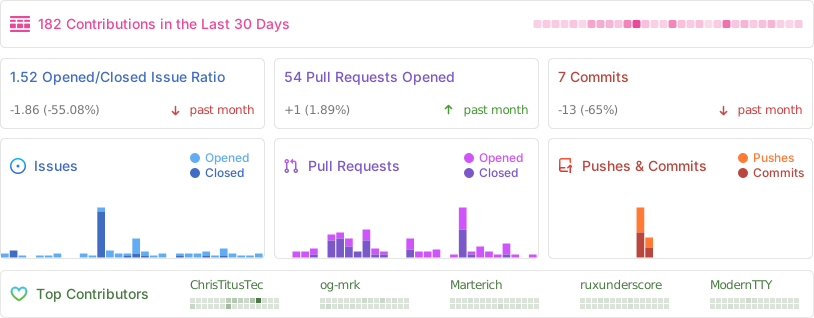
|
||||
@@ -103,7 +103,7 @@ jobs:
|
||||
${{ runner.temp }}/hugo_cache
|
||||
key: ${{ steps.cache-restore.outputs.cache-primary-key }}
|
||||
- name: Upload artifact
|
||||
uses: actions/upload-pages-artifact@v5
|
||||
uses: actions/upload-pages-artifact@v4
|
||||
with:
|
||||
path: ./docs/public
|
||||
|
||||
|
||||
@@ -15,63 +15,101 @@ jobs:
|
||||
contents: read
|
||||
|
||||
steps:
|
||||
- name: Process slash command
|
||||
uses: actions/github-script@v9
|
||||
with:
|
||||
script: |
|
||||
const allowedUsers = ["ChrisTitusTech", "og-mrk", "Marterich", "MyDrift-user", "Real-MullaC", "CodingWonders", "GabiNun2", "FluffyPunk"];
|
||||
const commenter = context.payload.comment.user.login;
|
||||
- run: echo "command=false" >> $GITHUB_ENV
|
||||
|
||||
// Authorization check first — before any parsing of comment content
|
||||
if (!allowedUsers.includes(commenter)) {
|
||||
console.log(`User ${commenter} is not in the allowlist. Skipping.`);
|
||||
return;
|
||||
}
|
||||
- name: Check for /label command
|
||||
id: check_label_command
|
||||
run: |
|
||||
if [[ "${{ contains(github.event.comment.body, '/label') }}" == "true" ]]; then
|
||||
echo "command=true" >> $GITHUB_ENV
|
||||
LABEL_NAME=$(echo "${{ github.event.comment.body }}" | awk -F"/label" '/\/label/ { match($2, /'\''([^'\'']*)'\''/, arr); if (arr[1] != "") print arr[1] }')
|
||||
echo "label_command=true" >> $GITHUB_ENV
|
||||
echo "label_name=${LABEL_NAME}" >> $GITHUB_ENV
|
||||
else
|
||||
echo "label_command=false" >> $GITHUB_ENV
|
||||
fi
|
||||
|
||||
// Read comment body as data, never interpolated into shell
|
||||
const body = context.payload.comment.body;
|
||||
const issueNumber = context.issue.number;
|
||||
const owner = context.repo.owner;
|
||||
const repo = context.repo.repo;
|
||||
- name: Check for /unlabel command
|
||||
id: check_unlabel_command
|
||||
run: |
|
||||
if [[ "${{ contains(github.event.comment.body, '/unlabel') }}" == "true" ]]; then
|
||||
echo "command=true" >> $GITHUB_ENV
|
||||
UNLABEL_NAME=$(echo "${{ github.event.comment.body }}" | awk -F"/unlabel" '/\/unlabel/ { match($2, /'\''([^'\'']*)'\''/, arr); if (arr[1] != "") print arr[1] }')
|
||||
echo "unlabel_command=true" >> $GITHUB_ENV
|
||||
echo "unlabel_name=${UNLABEL_NAME}" >> $GITHUB_ENV
|
||||
else
|
||||
echo "unlabel_command=false" >> $GITHUB_ENV
|
||||
fi
|
||||
|
||||
// /label 'name' or /label name
|
||||
const labelMatch = body.match(/\/label\s+'([^']+)'|\/label\s+(\S+?)(?:\s|$)/);
|
||||
if (labelMatch) {
|
||||
const labelName = (labelMatch[1] || labelMatch[2]).trim();
|
||||
console.log(`Adding label: ${labelName}`);
|
||||
await github.rest.issues.addLabels({
|
||||
owner, repo, issue_number: issueNumber,
|
||||
labels: [labelName],
|
||||
});
|
||||
}
|
||||
- name: Check for /close command
|
||||
id: check_close_command
|
||||
run: |
|
||||
if [[ "${{ contains(github.event.comment.body, '/close') }}" == "true" ]]; then
|
||||
echo "command=true" >> $GITHUB_ENV
|
||||
echo "close_command=true" >> $GITHUB_ENV
|
||||
echo "reopen_command=false" >> $GITHUB_ENV
|
||||
else
|
||||
echo "close_command=false" >> $GITHUB_ENV
|
||||
fi
|
||||
|
||||
// /unlabel 'name' or /unlabel name
|
||||
const unlabelMatch = body.match(/\/unlabel\s+'([^']+)'|\/unlabel\s+(\S+?)(?:\s|$)/);
|
||||
if (unlabelMatch) {
|
||||
const labelName = (unlabelMatch[1] || unlabelMatch[2]).trim();
|
||||
console.log(`Removing label: ${labelName}`);
|
||||
await github.rest.issues.removeLabel({
|
||||
owner, repo, issue_number: issueNumber,
|
||||
name: labelName,
|
||||
});
|
||||
}
|
||||
- name: Check for /open or /reopen command
|
||||
id: check_reopen_command
|
||||
run: |
|
||||
if [[ "${{ contains(github.event.comment.body, '/open') }}" == "true" ]] || [[ "${{ contains(github.event.comment.body, '/reopen') }}" == "true" ]]; then
|
||||
echo "command=true" >> $GITHUB_ENV
|
||||
echo "reopen_command=true" >> $GITHUB_ENV
|
||||
echo "close_command=false" >> $GITHUB_ENV
|
||||
else
|
||||
echo "reopen_command=false" >> $GITHUB_ENV
|
||||
fi
|
||||
|
||||
// /close (optionally with 'not planned')
|
||||
if (body.includes('/close')) {
|
||||
const stateReason = body.includes('not planned') ? 'not_planned' : 'completed';
|
||||
console.log(`Closing issue (reason: ${stateReason})`);
|
||||
await github.rest.issues.update({
|
||||
owner, repo, issue_number: issueNumber,
|
||||
state: 'closed',
|
||||
state_reason: stateReason,
|
||||
});
|
||||
}
|
||||
- name: Check if the user is allowed
|
||||
id: check_user
|
||||
if: env.command == 'true'
|
||||
run: |
|
||||
ALLOWED_USERS=("ChrisTitusTech" "og-mrk" "Marterich" "MyDrift-user" "Real-MullaC" "CodingWonders" "GabiNun")
|
||||
if [[ " ${ALLOWED_USERS[@]} " =~ " ${{ github.event.comment.user.login }} " ]]; then
|
||||
echo "user=true" >> $GITHUB_ENV
|
||||
else
|
||||
exit 0
|
||||
fi
|
||||
|
||||
// /open or /reopen
|
||||
if (body.includes('/open') || body.includes('/reopen')) {
|
||||
console.log('Reopening issue');
|
||||
await github.rest.issues.update({
|
||||
owner, repo, issue_number: issueNumber,
|
||||
state: 'open',
|
||||
});
|
||||
}
|
||||
- name: Close issue
|
||||
if: env.close_command == 'true'
|
||||
env:
|
||||
GITHUB_TOKEN: ${{ secrets.GITHUB_TOKEN }}
|
||||
ISSUE_NUMBER: ${{ github.event.issue.number }}
|
||||
run: |
|
||||
echo Closing the issue...
|
||||
if [[ "${{ contains(github.event.comment.body, 'not planned') }}" == "true" ]]; then
|
||||
gh issue close $ISSUE_NUMBER --repo ${{ github.repository }} --reason 'not planned'
|
||||
else
|
||||
gh issue close $ISSUE_NUMBER --repo ${{ github.repository }}
|
||||
fi
|
||||
|
||||
- name: Reopen issue
|
||||
if: env.reopen_command == 'true'
|
||||
env:
|
||||
GITHUB_TOKEN: ${{ secrets.GITHUB_TOKEN }}
|
||||
ISSUE_NUMBER: ${{ github.event.issue.number }}
|
||||
run: |
|
||||
echo Reopening the issue...
|
||||
gh issue reopen $ISSUE_NUMBER --repo ${{ github.repository }}
|
||||
|
||||
- name: Label issue
|
||||
if: env.label_command == 'true'
|
||||
env:
|
||||
GITHUB_TOKEN: ${{ secrets.GITHUB_TOKEN }}
|
||||
ISSUE_NUMBER: ${{ github.event.issue.number }}
|
||||
run: |
|
||||
echo Labeling the issue...
|
||||
gh issue edit $ISSUE_NUMBER --repo ${{ github.repository }} --add-label "${{ env.label_name }}"
|
||||
|
||||
- name: Remove labels
|
||||
if: env.unlabel_command == 'true'
|
||||
env:
|
||||
GITHUB_TOKEN: ${{ secrets.GITHUB_TOKEN }}
|
||||
ISSUE_NUMBER: ${{ github.event.issue.number }}
|
||||
run: |
|
||||
echo Unlabeling the issue...
|
||||
gh issue edit $ISSUE_NUMBER --repo ${{ github.repository }} --remove-label "${{ env.unlabel_name }}"
|
||||
|
||||
@@ -46,7 +46,7 @@ jobs:
|
||||
config/feature.json
|
||||
labels: |
|
||||
automated
|
||||
skip-changelog
|
||||
documentation
|
||||
|
||||
- name: Check outputs
|
||||
shell: bash
|
||||
|
||||
@@ -1,19 +1,62 @@
|
||||
# winutil
|
||||
System.Management.Automation.dll
|
||||
Microsoft.PowerShell.ConsoleHost.dll
|
||||
|
||||
winutil.exe.config
|
||||
winutil.ps1
|
||||
binary/
|
||||
|
||||
# general software/os specific
|
||||
desktop.ini
|
||||
.DS_Store
|
||||
### VSCode ###
|
||||
|
||||
# Configuration folder
|
||||
.vscode/
|
||||
.idea/
|
||||
|
||||
# hugo files
|
||||
### Visual Studio ###
|
||||
|
||||
# Visual Studio user-specific files
|
||||
.vs/
|
||||
|
||||
winutil.pdb
|
||||
|
||||
### Preprocessor Hashes ###
|
||||
.preprocessor_hashes.json
|
||||
|
||||
### Windows ###
|
||||
|
||||
# Folder config file
|
||||
[Dd]esktop.ini
|
||||
|
||||
# Ignore Generated XAML Files
|
||||
xaml/inputApp.xaml
|
||||
xaml/inputFeatures.xaml
|
||||
xaml/inputTweaks.xaml
|
||||
|
||||
# Executables and Configs
|
||||
winget.msixbundle
|
||||
pester.ps1
|
||||
*.psd*
|
||||
ooshutup10.cfg
|
||||
winutil.exe.config
|
||||
Microsoft.UI.Xaml*
|
||||
license1.xml
|
||||
winutil.ps1
|
||||
|
||||
# Libraries
|
||||
System.Management.Automation.dll
|
||||
Microsoft.PowerShell.ConsoleHost.dll
|
||||
|
||||
# Compressed files
|
||||
*.zip
|
||||
|
||||
### MacOS ###
|
||||
|
||||
# General
|
||||
.DS_Store
|
||||
True
|
||||
test.ps1
|
||||
winutil.ps1
|
||||
|
||||
# temporary excludes for docs
|
||||
.github/site/
|
||||
|
||||
binary/
|
||||
|
||||
.preprocessor_hashes.json
|
||||
|
||||
# Hugo Files
|
||||
docs/public/
|
||||
docs/.hugo_build.lock
|
||||
docs/resources/
|
||||
|
||||
@@ -1,44 +1,144 @@
|
||||
param (
|
||||
[switch]$Run
|
||||
[switch]$Run,
|
||||
[string]$Arguments
|
||||
)
|
||||
|
||||
if ((Get-Item ".\winutil.ps1" -ErrorAction SilentlyContinue).IsReadOnly) {
|
||||
Remove-Item ".\winutil.ps1" -Force
|
||||
}
|
||||
|
||||
$OFS = "`r`n"
|
||||
$scriptname = "winutil.ps1"
|
||||
$workingdir = $PSScriptRoot
|
||||
|
||||
# Variable to sync between runspaces
|
||||
$sync = [Hashtable]::Synchronized(@{})
|
||||
$sync.configs = @{}
|
||||
|
||||
$script = (Get-Content -Path scripts\start.ps1) -replace '#{replaceme}', (Get-Date -Format 'yy.MM.dd')
|
||||
function Update-Progress {
|
||||
param (
|
||||
[Parameter(Mandatory, position=0)]
|
||||
[string]$StatusMessage,
|
||||
|
||||
$script += Get-ChildItem -Path functions -Recurse -File | Get-Content -Raw
|
||||
[Parameter(Mandatory, position=1)]
|
||||
[ValidateRange(0,100)]
|
||||
[int]$Percent,
|
||||
|
||||
Get-ChildItem config | ForEach-Object {
|
||||
$obj = Get-Content -Path $_.FullName -Raw | ConvertFrom-Json
|
||||
[Parameter(position=2)]
|
||||
[string]$Activity = "Compiling"
|
||||
)
|
||||
|
||||
if ($_.Name -eq "applications.json") {
|
||||
$fixed = [ordered]@{}
|
||||
foreach ($p in $obj.PSObject.Properties) {
|
||||
$fixed["WPFInstall$($p.Name)"] = $p.Value
|
||||
Write-Progress -Activity $Activity -Status $StatusMessage -PercentComplete $Percent
|
||||
}
|
||||
|
||||
Update-Progress "Pre-req: Running Preprocessor..." 0
|
||||
|
||||
# Dot source the 'Invoke-Preprocessing' Function from 'tools/Invoke-Preprocessing.ps1' Script
|
||||
$preprocessingFilePath = ".\tools\Invoke-Preprocessing.ps1"
|
||||
. $preprocessingFilePath
|
||||
|
||||
$excludedFiles = @()
|
||||
|
||||
# Add directories only if they exist
|
||||
if (Test-Path '.\.git\') { $excludedFiles += '.\.git\' }
|
||||
if (Test-Path '.\binary\') { $excludedFiles += '.\binary\' }
|
||||
|
||||
# Add files that should always be excluded
|
||||
$excludedFiles += @(
|
||||
'.\.gitignore',
|
||||
'.\.gitattributes',
|
||||
'.\.github\CODEOWNERS',
|
||||
'.\LICENSE',
|
||||
"$preprocessingFilePath",
|
||||
'*.png',
|
||||
'.\.preprocessor_hashes.json'
|
||||
)
|
||||
|
||||
$msg = "Pre-req: Code Formatting"
|
||||
Invoke-Preprocessing -WorkingDir "$workingdir" -ExcludedFiles $excludedFiles -ProgressStatusMessage $msg
|
||||
|
||||
# Create the script in memory.
|
||||
Update-Progress "Pre-req: Allocating Memory" 0
|
||||
$script_content = [System.Collections.Generic.List[string]]::new()
|
||||
|
||||
Update-Progress "Adding: Version" 10
|
||||
$script_content.Add($(Get-Content "scripts\start.ps1").replace('#{replaceme}',"$(Get-Date -Format yy.MM.dd)"))
|
||||
|
||||
Update-Progress "Adding: Functions" 20
|
||||
Get-ChildItem "functions" -Recurse -File | ForEach-Object {
|
||||
$script_content.Add($(Get-Content $psitem.FullName))
|
||||
}
|
||||
Update-Progress "Adding: Config *.json" 40
|
||||
Get-ChildItem "config" | Where-Object {$psitem.extension -eq ".json"} | ForEach-Object {
|
||||
$json = (Get-Content $psitem.FullName -Raw)
|
||||
$jsonAsObject = $json | ConvertFrom-Json
|
||||
|
||||
# Add 'WPFInstall' as a prefix to every entry-name in 'applications.json' file
|
||||
if ($psitem.Name -eq "applications.json") {
|
||||
foreach ($appEntryName in $jsonAsObject.PSObject.Properties.Name) {
|
||||
$appEntryContent = $jsonAsObject.$appEntryName
|
||||
$jsonAsObject.PSObject.Properties.Remove($appEntryName)
|
||||
$jsonAsObject | Add-Member -MemberType NoteProperty -Name "WPFInstall$appEntryName" -Value $appEntryContent
|
||||
}
|
||||
$obj = [pscustomobject]$fixed
|
||||
}
|
||||
|
||||
$json = $obj | ConvertTo-Json -Depth 10
|
||||
# Line 90 requires no whitespace inside the here-strings, to keep formatting of the JSON in the final script.
|
||||
$json = @"
|
||||
$($jsonAsObject | ConvertTo-Json -Depth 3)
|
||||
"@
|
||||
|
||||
$sync.configs[$_.BaseName] = $obj
|
||||
$script += "`$sync.configs.$($_.BaseName) = @'`r`n$json`r`n'@ | ConvertFrom-Json"
|
||||
$sync.configs.$($psitem.BaseName) = $json | ConvertFrom-Json
|
||||
$script_content.Add($(Write-Output "`$sync.configs.$($psitem.BaseName) = @'`r`n$json`r`n'@ `| ConvertFrom-Json" ))
|
||||
}
|
||||
|
||||
$xaml = Get-Content -Path xaml\inputXML.xaml -Raw
|
||||
$script += "`$inputXML = @'`r`n$xaml`r`n'@"
|
||||
# Read the entire XAML file as a single string, preserving line breaks
|
||||
$xaml = Get-Content "$workingdir\xaml\inputXML.xaml" -Raw
|
||||
|
||||
$autounattendXml = Get-Content -Path tools\autounattend.xml -Raw
|
||||
$script += "`$WinUtilAutounattendXml = @'`r`n$autounattendXml`r`n'@"
|
||||
Update-Progress "Adding: Xaml " 90
|
||||
|
||||
$script += Get-Content -Path scripts\main.ps1 -Raw
|
||||
# Add the XAML content to $script_content using a here-string
|
||||
$script_content.Add(@"
|
||||
`$inputXML = @'
|
||||
$xaml
|
||||
'@
|
||||
"@)
|
||||
|
||||
Set-Content -Path winutil.ps1 -Value $script
|
||||
Update-Progress "Adding: autounattend.xml" 95
|
||||
$autounattendRaw = Get-Content "$workingdir\tools\autounattend.xml" -Raw
|
||||
# Strip XML comments (<!-- ... -->, including multi-line)
|
||||
$autounattendRaw = [regex]::Replace($autounattendRaw, '<!--.*?-->', '', [System.Text.RegularExpressions.RegexOptions]::Singleline)
|
||||
# Drop blank lines and trim trailing whitespace per line
|
||||
$autounattendXml = ($autounattendRaw -split "`r?`n" |
|
||||
Where-Object { $_.Trim() -ne '' } |
|
||||
ForEach-Object { $_.TrimEnd() }) -join "`r`n"
|
||||
$script_content.Add(@"
|
||||
`$WinUtilAutounattendXml = @'
|
||||
$autounattendXml
|
||||
'@
|
||||
"@)
|
||||
|
||||
if ($Run) {
|
||||
.\Winutil.ps1
|
||||
$script_content.Add($(Get-Content "scripts\main.ps1"))
|
||||
|
||||
Update-Progress "Removing temporary files" 99
|
||||
Remove-Item "xaml\inputApp.xaml" -ErrorAction SilentlyContinue
|
||||
Remove-Item "xaml\inputTweaks.xaml" -ErrorAction SilentlyContinue
|
||||
Remove-Item "xaml\inputFeatures.xaml" -ErrorAction SilentlyContinue
|
||||
|
||||
Set-Content -Path "$scriptname" -Value ($script_content -join "`r`n") -Encoding ascii
|
||||
Write-Progress -Activity "Compiling" -Completed
|
||||
|
||||
Update-Progress -Activity "Validating" -StatusMessage "Checking winutil.ps1 Syntax" -Percent 0
|
||||
try {
|
||||
Get-Command -Syntax .\winutil.ps1 | Out-Null
|
||||
} catch {
|
||||
Write-Warning "Syntax Validation for 'winutil.ps1' has failed"
|
||||
Write-Host "$($Error[0])" -ForegroundColor Red
|
||||
exit 1
|
||||
}
|
||||
Write-Progress -Activity "Validating" -Completed
|
||||
|
||||
if ($run) {
|
||||
Set-ExecutionPolicy -Scope Process -ExecutionPolicy Bypass
|
||||
.\Winutil.ps1 $Arguments
|
||||
break
|
||||
}
|
||||
|
||||
@@ -1,88 +1,88 @@
|
||||
# Chris Titus Tech's Windows Utility
|
||||
|
||||
[](https://github.com/ChrisTitusTech/winutil/releases/latest)
|
||||

|
||||
[](https://discord.gg/RUbZUZyByQ)
|
||||

|
||||
[](https://discord.gg/RUbZUZyByQ)
|
||||
[](https://winutil.christitus.com/)
|
||||
|
||||
A curated compilation of Windows system tasks streamline **installs**, debloat with **tweaks**, troubleshoot with **config**, and configure **Windows updates**. Run it fresh on every new Windows install.
|
||||
This utility is a compilation of Windows tasks I perform on each Windows system I use. It is meant to streamline *installs*, debloat with *tweaks*, troubleshoot with *config*, and fix Windows *updates*. I am extremely picky about any contributions to keep this project clean and efficient.
|
||||
|
||||

|
||||

|
||||
|
||||
---
|
||||
## 💡 Usage
|
||||
|
||||
## Quick Start
|
||||
Winutil must be run in Admin mode because it performs system-wide tweaks. To achieve this, run PowerShell as an administrator. Here are a few ways to do it:
|
||||
|
||||
> **WinUtil must be run as Administrator** Because it performs system-wide changes.
|
||||
1. **Start menu Method:**
|
||||
- Right-click on the start menu.
|
||||
- Choose "Windows PowerShell (Admin)" (for Windows 10) or "Terminal (Admin)" (for Windows 11).
|
||||
|
||||
Open PowerShell or Terminal as admin, then run:
|
||||
2. **Search and Launch Method:**
|
||||
- Press the Windows key.
|
||||
- Type "PowerShell" or "Terminal" (for Windows 11).
|
||||
- Press `Ctrl + Shift + Enter` or Right-click and choose "Run as administrator" to launch it with administrator privileges.
|
||||
|
||||
### Launch Command
|
||||
|
||||
#### Stable Branch (Recommended)
|
||||
|
||||
**Stable Branch (recommended)**
|
||||
```ps1
|
||||
irm https://christitus.com/win | iex
|
||||
irm "https://christitus.com/win" | iex
|
||||
```
|
||||
#### Dev Branch
|
||||
|
||||
**Development Branch**
|
||||
```ps1
|
||||
irm https://christitus.com/windev | iex
|
||||
irm "https://christitus.com/windev" | iex
|
||||
```
|
||||
|
||||
### How to open an admin terminal
|
||||
If you have Issues, refer to [Known Issues](https://winutil.christitus.com/knownissues/) or [Create Issue](https://github.com/ChrisTitusTech/winutil/issues)
|
||||
|
||||
- **Start menu:** Right-click Start → *Windows PowerShell (Admin)* or *Terminal (Admin)*
|
||||
- **Search:** Press the `Windows key`, and type `PowerShell` or `Terminal`, then `Ctrl + Shift + Enter`
|
||||
## 🎓 Documentation
|
||||
|
||||
---
|
||||
### [WinUtil Official Documentation](https://winutil.christitus.com/)
|
||||
|
||||
## Automation / Presets
|
||||
### [YouTube Tutorial](https://www.youtube.com/watch?v=6UQZ5oQg8XA)
|
||||
|
||||
Apply a predefined configuration without manual selection:
|
||||
### [ChrisTitus.com Article](https://christitus.com/windows-tool/)
|
||||
|
||||
```powershell
|
||||
& ([ScriptBlock]::Create((irm https://christitus.com/win))) -Preset Standard
|
||||
## 🛠️ Build & Develop
|
||||
|
||||
> [!NOTE]
|
||||
> Winutil is a relatively large script, so it's split into multiple files which're combined into a single `.ps1` file using a custom compiler. This makes maintaining the project a lot easier.
|
||||
|
||||
Get a copy of the source code. This can be done using GitHub UI (**Code** > **Download ZIP**), or by cloning (downloading) the repo using git.
|
||||
|
||||
If git is installed, run the following commands under a PowerShell window to clone and move into the project's directory:
|
||||
```ps1
|
||||
git clone --depth 1 "https://github.com/ChrisTitusTech/winutil.git"
|
||||
cd winutil
|
||||
```
|
||||
|
||||
| Preset | Description |
|
||||
|--------|-------------|
|
||||
| `Standard` | Balanced defaults for most users |
|
||||
| `Minimal` | Minimal changes to suit every user |
|
||||
| `Advanced` | Deep tweaks for power users |
|
||||
To build the project, run the Compile Script under a PowerShell window (admin permissions IS NOT required):
|
||||
```ps1
|
||||
.\Compile.ps1
|
||||
```
|
||||
|
||||
To view exactly what each preset does, see:
|
||||
https://github.com/ChrisTitusTech/winutil/blob/main/config/preset.json
|
||||
You'll see a new file named `winutil.ps1`, which was created by `Compile.ps1` script. Now you can run it as admin, and a new window will pop up. Enjoy your own compiled version of WinUtil :)
|
||||
|
||||
---
|
||||
> [!TIP]
|
||||
> For more info on using WinUtil and how to develop for it, please consider reading [the Contribution Guidelines](https://winutil.christitus.com/contributing/). If you don't know where to start, or have questions, you can ask over on our [Discord Community Server](https://discord.gg/RUbZUZyByQ), and active project members will answer when they can.
|
||||
|
||||
## Build & Develop
|
||||
|
||||
See https://github.com/ChrisTitusTech/winutil/blob/main/.github/CONTRIBUTING.md
|
||||
|
||||
---
|
||||
|
||||
## Resources
|
||||
|
||||
- [Official Documentation](https://winutil.christitus.com/)
|
||||
- [YouTube Tutorial](https://www.youtube.com/watch?v=6UQZ5oQg8XA)
|
||||
- [ChrisTitus.com Article](https://christitus.com/windows-tool/)
|
||||
- [Known Issues](https://winutil.christitus.com/knownissues/)
|
||||
- [Report an Issue](https://github.com/ChrisTitusTech/winutil/issues)
|
||||
|
||||
---
|
||||
|
||||
## Support
|
||||
|
||||
- Leave a ⭐ to show support!
|
||||
## 💖 Support
|
||||
- To morally and mentally support the project, make sure to leave a ⭐️!
|
||||
- EXE Wrapper for $10 @ https://www.cttstore.com/windows-toolbox
|
||||
|
||||
## Sponsors
|
||||
## 💖 Sponsors
|
||||
|
||||
These are the sponsors that help keep this project alive with monthly contributions.
|
||||
|
||||
<!-- sponsors --><a href="https://github.com/dwelfusius"><img src="https://github.com/dwelfusius.png" width="60px" alt="User avatar: " /></a><a href="https://github.com/mews-se"><img src="https://github.com/mews-se.png" width="60px" alt="User avatar: Martin Stockzell" /></a><a href="https://github.com/jdiegmueller"><img src="https://github.com/jdiegmueller.png" width="60px" alt="User avatar: Jason A. Diegmueller" /></a><a href="https://github.com/robertsandrock"><img src="https://github.com/robertsandrock.png" width="60px" alt="User avatar: RMS" /></a><a href="https://github.com/paulsheets"><img src="https://github.com/paulsheets.png" width="60px" alt="User avatar: Paul" /></a><a href="https://github.com/djones369"><img src="https://github.com/djones369.png" width="60px" alt="User avatar: Dave J (WhamGeek)" /></a><a href="https://github.com/anthonymendez"><img src="https://github.com/anthonymendez.png" width="60px" alt="User avatar: Anthony Mendez" /></a><a href="https://github.com/FatBastard0"><img src="https://github.com/FatBastard0.png" width="60px" alt="User avatar: " /></a><a href="https://github.com/DursleyGuy"><img src="https://github.com/DursleyGuy.png" width="60px" alt="User avatar: DursleyGuy" /></a><a href="https://github.com/DwayneTheRockLobster1"><img src="https://github.com/DwayneTheRockLobster1.png" width="60px" alt="User avatar: " /></a><a href="https://github.com/KieraKujisawa"><img src="https://github.com/KieraKujisawa.png" width="60px" alt="User avatar: Kiera Meredith" /></a><a href="https://github.com/andrewpayne68"><img src="https://github.com/andrewpayne68.png" width="60px" alt="User avatar: Andrew P" /></a><!-- sponsors -->
|
||||
<!-- sponsors --><a href="https://github.com/dwelfusius"><img src="https://github.com/dwelfusius.png" width="60px" alt="User avatar: " /></a><a href="https://github.com/mews-se"><img src="https://github.com/mews-se.png" width="60px" alt="User avatar: Martin Stockzell" /></a><a href="https://github.com/jdiegmueller"><img src="https://github.com/jdiegmueller.png" width="60px" alt="User avatar: Jason A. Diegmueller" /></a><a href="https://github.com/robertsandrock"><img src="https://github.com/robertsandrock.png" width="60px" alt="User avatar: RMS" /></a><a href="https://github.com/paulsheets"><img src="https://github.com/paulsheets.png" width="60px" alt="User avatar: Paul" /></a><a href="https://github.com/djones369"><img src="https://github.com/djones369.png" width="60px" alt="User avatar: Dave J (WhamGeek)" /></a><a href="https://github.com/anthonymendez"><img src="https://github.com/anthonymendez.png" width="60px" alt="User avatar: Anthony Mendez" /></a><a href="https://github.com/FatBastard0"><img src="https://github.com/FatBastard0.png" width="60px" alt="User avatar: " /></a><a href="https://github.com/DursleyGuy"><img src="https://github.com/DursleyGuy.png" width="60px" alt="User avatar: DursleyGuy" /></a><a href="https://github.com/DwayneTheRockLobster1"><img src="https://github.com/DwayneTheRockLobster1.png" width="60px" alt="User avatar: " /></a><a href="https://github.com/KieraKujisawa"><img src="https://github.com/KieraKujisawa.png" width="60px" alt="User avatar: Kiera Meredith" /></a><a href="https://github.com/partybrasil"><img src="https://github.com/partybrasil.png" width="60px" alt="User avatar: Miguel Diaz" /></a><a href="https://github.com/andrewpayne68"><img src="https://github.com/andrewpayne68.png" width="60px" alt="User avatar: Andrew P" /></a><a href="https://github.com/Di3Z1E"><img src="https://github.com/Di3Z1E.png" width="60px" alt="User avatar: Di3Z1E" /></a><a href="https://github.com/AbdulVakeel"><img src="https://github.com/AbdulVakeel.png" width="60px" alt="User avatar: Abdul Vakeel Software Engineer" /></a><!-- sponsors -->
|
||||
|
||||
---
|
||||
|
||||
## Contributors
|
||||
## 🏅 Thanks to all Contributors
|
||||
Thanks a lot for spending your time helping Winutil grow. Thanks a lot! Keep rocking 🍻.
|
||||
|
||||
[](https://github.com/ChrisTitusTech/winutil/graphs/contributors)
|
||||
|
||||
Thanks to everyone who has contributed time and effort to this project. Keep rocking 🍻
|
||||
## 📊 GitHub Stats
|
||||
|
||||

|
||||
|
||||
@@ -1,6 +1,6 @@
|
||||
{
|
||||
"WPFFeaturesdotnet": {
|
||||
"Content": ".NET Framework (Versions 2, 3, 4) - Enable",
|
||||
"Content": "All .Net Framework (2,3,4)",
|
||||
"Description": ".NET and .NET Framework is a developer platform made up of tools, programming languages, and libraries for building many different types of applications.",
|
||||
"category": "Features",
|
||||
"panel": "1",
|
||||
@@ -12,7 +12,7 @@
|
||||
"link": "https://winutil.christitus.com/dev/features/features/dotnet"
|
||||
},
|
||||
"WPFFixesNTPPool": {
|
||||
"Content": "NTP Server - Enable",
|
||||
"Content": "Configure NTP Server",
|
||||
"Description": "Replaces the default Windows NTP server (time.windows.com) with pool.ntp.org for improved time synchronization accuracy and reliability.",
|
||||
"category": "Fixes",
|
||||
"panel": "1",
|
||||
@@ -22,17 +22,20 @@
|
||||
"link": "https://winutil.christitus.com/dev/features/fixes/ntppool"
|
||||
},
|
||||
"WPFFeatureshyperv": {
|
||||
"Content": "Hyper-V - Enable",
|
||||
"Content": "HyperV Virtualization",
|
||||
"Description": "Hyper-V is a hardware virtualization product developed by Microsoft that allows users to create and manage virtual machines.",
|
||||
"category": "Features",
|
||||
"panel": "1",
|
||||
"feature": [
|
||||
"Microsoft-Hyper-V-All"
|
||||
],
|
||||
"InvokeScript": [
|
||||
"bcdedit /set hypervisorschedulertype classic"
|
||||
],
|
||||
"link": "https://winutil.christitus.com/dev/features/features/hyperv"
|
||||
},
|
||||
"WPFFeatureslegacymedia": {
|
||||
"Content": "Legacy Media Components (WMP, DirectPlay) - Enable",
|
||||
"Content": "Legacy Media (WMP, DirectPlay)",
|
||||
"Description": "Enables legacy programs from previous versions of Windows.",
|
||||
"category": "Features",
|
||||
"panel": "1",
|
||||
@@ -46,7 +49,7 @@
|
||||
"link": "https://winutil.christitus.com/dev/features/features/legacymedia"
|
||||
},
|
||||
"WPFFeaturewsl": {
|
||||
"Content": "Windows Subsystem for Linux (WSL) - Enable",
|
||||
"Content": "Windows Subsystem for Linux",
|
||||
"Description": "Windows Subsystem for Linux is an optional feature of Windows that allows Linux programs to run natively on Windows without the need for a separate virtual machine or dual booting.",
|
||||
"category": "Features",
|
||||
"panel": "1",
|
||||
@@ -58,7 +61,7 @@
|
||||
"link": "https://winutil.christitus.com/dev/features/features/wsl"
|
||||
},
|
||||
"WPFFeaturenfs": {
|
||||
"Content": "Network File System (NFS) - Enable",
|
||||
"Content": "NFS - Network File System",
|
||||
"Description": "Network File System (NFS) is a mechanism for storing files on a network.",
|
||||
"category": "Features",
|
||||
"panel": "1",
|
||||
@@ -77,7 +80,7 @@
|
||||
"link": "https://winutil.christitus.com/dev/features/features/nfs"
|
||||
},
|
||||
"WPFFeatureRegBackup": {
|
||||
"Content": "Registry Backup (Daily Task 12:30am) - Enable",
|
||||
"Content": "Enable Daily Registry Backup Task 12.30am",
|
||||
"Description": "Enables daily registry backup, previously disabled by Microsoft in Windows 10 1803.",
|
||||
"category": "Features",
|
||||
"panel": "1",
|
||||
@@ -94,7 +97,7 @@
|
||||
"link": "https://winutil.christitus.com/dev/features/features/regbackup"
|
||||
},
|
||||
"WPFFeatureEnableLegacyRecovery": {
|
||||
"Content": "Legacy F8 Boot Recovery - Enable",
|
||||
"Content": "Enable Legacy F8 Boot Recovery",
|
||||
"Description": "Enables Advanced Boot Options screen that lets you start Windows in advanced troubleshooting modes.",
|
||||
"category": "Features",
|
||||
"panel": "1",
|
||||
@@ -105,7 +108,7 @@
|
||||
"link": "https://winutil.christitus.com/dev/features/features/enablelegacyrecovery"
|
||||
},
|
||||
"WPFFeatureDisableLegacyRecovery": {
|
||||
"Content": "Legacy F8 Boot Recovery - Disable",
|
||||
"Content": "Disable Legacy F8 Boot Recovery",
|
||||
"Description": "Disables Advanced Boot Options screen that lets you start Windows in advanced troubleshooting modes.",
|
||||
"category": "Features",
|
||||
"panel": "1",
|
||||
@@ -116,7 +119,7 @@
|
||||
"link": "https://winutil.christitus.com/dev/features/features/disablelegacyrecovery"
|
||||
},
|
||||
"WPFFeaturesSandbox": {
|
||||
"Content": "Windows Sandbox - Enable",
|
||||
"Content": "Windows Sandbox",
|
||||
"Description": "Windows Sandbox is a lightweight virtual machine that provides a temporary desktop environment to safely run applications and programs in isolation.",
|
||||
"category": "Features",
|
||||
"panel": "1",
|
||||
@@ -135,7 +138,7 @@
|
||||
"link": "https://winutil.christitus.com/dev/features/features/install"
|
||||
},
|
||||
"WPFPanelAutologin": {
|
||||
"Content": "AutoLogon - Run",
|
||||
"Content": "Set Up Autologin",
|
||||
"category": "Fixes",
|
||||
"panel": "1",
|
||||
"Type": "Button",
|
||||
@@ -144,7 +147,7 @@
|
||||
"link": "https://winutil.christitus.com/dev/features/fixes/autologin"
|
||||
},
|
||||
"WPFFixesUpdate": {
|
||||
"Content": "Windows Update - Reset",
|
||||
"Content": "Reset Windows Update",
|
||||
"category": "Fixes",
|
||||
"panel": "1",
|
||||
"Type": "Button",
|
||||
@@ -153,7 +156,7 @@
|
||||
"link": "https://winutil.christitus.com/dev/features/fixes/update"
|
||||
},
|
||||
"WPFFixesNetwork": {
|
||||
"Content": "Network - Reset",
|
||||
"Content": "Reset Network",
|
||||
"category": "Fixes",
|
||||
"panel": "1",
|
||||
"Type": "Button",
|
||||
@@ -162,7 +165,7 @@
|
||||
"link": "https://winutil.christitus.com/dev/features/fixes/network"
|
||||
},
|
||||
"WPFPanelDISM": {
|
||||
"Content": "System Corruption Scan - Run",
|
||||
"Content": "System Corruption Scan",
|
||||
"category": "Fixes",
|
||||
"panel": "1",
|
||||
"Type": "Button",
|
||||
@@ -171,7 +174,7 @@
|
||||
"link": "https://winutil.christitus.com/dev/features/fixes/dism"
|
||||
},
|
||||
"WPFFixesWinget": {
|
||||
"Content": "WinGet - Reinstall",
|
||||
"Content": "WinGet Reinstall",
|
||||
"category": "Fixes",
|
||||
"panel": "1",
|
||||
"Type": "Button",
|
||||
@@ -290,7 +293,7 @@
|
||||
"link": "https://winutil.christitus.com/dev/features/legacy-windows-panels/timedate"
|
||||
},
|
||||
"WPFWinUtilInstallPSProfile": {
|
||||
"Content": "CTT PowerShell Profile - Install",
|
||||
"Content": "Install CTT PowerShell Profile",
|
||||
"category": "Powershell Profile Powershell 7+ Only",
|
||||
"panel": "2",
|
||||
"Type": "Button",
|
||||
@@ -299,7 +302,7 @@
|
||||
"link": "https://winutil.christitus.com/dev/features/powershell-profile-powershell-7--only/installpsprofile"
|
||||
},
|
||||
"WPFWinUtilUninstallPSProfile": {
|
||||
"Content": "CTT PowerShell Profile - Remove",
|
||||
"Content": "Uninstall CTT PowerShell Profile",
|
||||
"category": "Powershell Profile Powershell 7+ Only",
|
||||
"panel": "2",
|
||||
"Type": "Button",
|
||||
@@ -308,7 +311,7 @@
|
||||
"link": "https://winutil.christitus.com/dev/features/powershell-profile-powershell-7--only/uninstallpsprofile"
|
||||
},
|
||||
"WPFWinUtilSSHServer": {
|
||||
"Content": "OpenSSH Server - Enable",
|
||||
"Content": "Enable OpenSSH Server",
|
||||
"category": "Remote Access",
|
||||
"panel": "2",
|
||||
"Type": "Button",
|
||||
|
||||
@@ -4,40 +4,20 @@
|
||||
"WPFTweaksConsumerFeatures",
|
||||
"WPFTweaksDisableExplorerAutoDiscovery",
|
||||
"WPFTweaksWPBT",
|
||||
"WPFTweaksDeBloat",
|
||||
"WPFTweaksDVR",
|
||||
"WPFTweaksLocation",
|
||||
"WPFTweaksServices",
|
||||
"WPFTweaksTelemetry",
|
||||
"WPFTweaksDeliveryOptimization",
|
||||
"WPFTweaksDiskCleanup",
|
||||
"WPFTweaksDeleteTempFiles",
|
||||
"WPFTweaksEndTaskOnTaskbar",
|
||||
"WPFTweaksRestorePoint"
|
||||
"WPFTweaksRestorePoint",
|
||||
"WPFTweaksPowershell7Tele"
|
||||
],
|
||||
"Minimal": [
|
||||
"WPFTweaksConsumerFeatures",
|
||||
"WPFTweaksDeBloat",
|
||||
"WPFTweaksWPBT",
|
||||
"WPFTweaksServices",
|
||||
"WPFTweaksTelemetry"
|
||||
],
|
||||
"Advanced": [
|
||||
"WPFTweaksActivity",
|
||||
"WPFTweaksConsumerFeatures",
|
||||
"WPFTweaksDisableExplorerAutoDiscovery",
|
||||
"WPFTweaksWPBT",
|
||||
"WPFTweaksDeBloat",
|
||||
"WPFTweaksLocation",
|
||||
"WPFTweaksServices",
|
||||
"WPFTweaksTelemetry",
|
||||
"WPFTweaksDeliveryOptimization",
|
||||
"WPFTweaksDeleteTempFiles",
|
||||
"WPFTweaksEndTaskOnTaskbar",
|
||||
"WPFTweaksDisableStoreSearch",
|
||||
"WPFTweaksRevertStartMenu",
|
||||
"WPFTweaksWidget",
|
||||
"WPFTweaksRemoveOneDrive",
|
||||
"WPFTweaksWindowsAI",
|
||||
"WPFTweaksRightClickMenu"
|
||||
]
|
||||
}
|
||||
|
||||
@@ -1,124 +1,127 @@
|
||||
{
|
||||
"shared": {
|
||||
"AppEntryWidth": "200",
|
||||
"AppEntryFontSize": "11",
|
||||
"AppEntryMargin": "1,0,1,0",
|
||||
"AppEntryBorderThickness": "0",
|
||||
"CustomDialogFontSize": "12",
|
||||
"CustomDialogFontSizeHeader": "14",
|
||||
"CustomDialogLogoSize": "25",
|
||||
"CustomDialogWidth": "400",
|
||||
"CustomDialogHeight": "200",
|
||||
"FontSize": "12",
|
||||
"FontFamily": "Arial",
|
||||
"HeaderFontSize": "16",
|
||||
"HeaderFontFamily": "Consolas, Monaco",
|
||||
"CheckBoxBulletDecoratorSize": "14",
|
||||
"CheckBoxMargin": "15,0,0,2",
|
||||
"TabContentMargin": "5",
|
||||
"TabButtonFontSize": "14",
|
||||
"TabButtonWidth": "110",
|
||||
"TabButtonHeight": "26",
|
||||
"TabRowHeightInPixels": "50",
|
||||
"ToolTipWidth": "300",
|
||||
"IconFontSize": "14",
|
||||
"IconButtonSize": "35",
|
||||
"SettingsIconFontSize": "18",
|
||||
"CloseIconFontSize": "18",
|
||||
"GroupBorderBackgroundColor": "#232629",
|
||||
"ButtonFontSize": "12",
|
||||
"ButtonFontFamily": "Arial",
|
||||
"ButtonWidth": "200",
|
||||
"ButtonHeight": "25",
|
||||
"ConfigTabButtonFontSize": "14",
|
||||
"ConfigUpdateButtonFontSize": "14",
|
||||
"SearchBarWidth": "200",
|
||||
"SearchBarHeight": "26",
|
||||
"SearchBarTextBoxFontSize": "12",
|
||||
"SearchBarClearButtonFontSize": "14",
|
||||
"CheckboxMouseOverColor": "#999999",
|
||||
"ButtonBorderThickness": "1",
|
||||
"ButtonMargin": "1",
|
||||
"ButtonCornerRadius": "2"
|
||||
},
|
||||
"Light": {
|
||||
"AppInstallUnselectedColor": "#F7F7F7",
|
||||
"AppInstallHighlightedColor": "#CFCFCF",
|
||||
"AppInstallSelectedColor": "#C2C2C2",
|
||||
"AppInstallOverlayBackgroundColor": "#6A6D72",
|
||||
"ComboBoxForegroundColor": "#232629",
|
||||
"ComboBoxBackgroundColor": "#F7F7F7",
|
||||
"LabelboxForegroundColor": "#232629",
|
||||
"MainForegroundColor": "#232629",
|
||||
"MainBackgroundColor": "#F7F7F7",
|
||||
"LabelBackgroundColor": "#F7F7F7",
|
||||
"LinkForegroundColor": "#484848",
|
||||
"LinkHoverForegroundColor": "#232629",
|
||||
"ScrollBarBackgroundColor": "#4A4D52",
|
||||
"ScrollBarHoverColor": "#5A5D62",
|
||||
"ScrollBarDraggingColor": "#6A6D72",
|
||||
"ProgressBarForegroundColor": "#2E77FF",
|
||||
"ProgressBarBackgroundColor": "Transparent",
|
||||
"ProgressBarTextColor": "#232629",
|
||||
"ButtonInstallBackgroundColor": "#F7F7F7",
|
||||
"ButtonTweaksBackgroundColor": "#F7F7F7",
|
||||
"ButtonConfigBackgroundColor": "#F7F7F7",
|
||||
"ButtonUpdatesBackgroundColor": "#F7F7F7",
|
||||
"ButtonWin11ISOBackgroundColor": "#F7F7F7",
|
||||
"ButtonInstallForegroundColor": "#232629",
|
||||
"ButtonTweaksForegroundColor": "#232629",
|
||||
"ButtonConfigForegroundColor": "#232629",
|
||||
"ButtonUpdatesForegroundColor": "#232629",
|
||||
"ButtonWin11ISOForegroundColor": "#232629",
|
||||
"ButtonBackgroundColor": "#F5F5F5",
|
||||
"ButtonBackgroundPressedColor": "#1A1A1A",
|
||||
"ButtonBackgroundMouseoverColor": "#C2C2C2",
|
||||
"ButtonBackgroundSelectedColor": "#F0F0F0",
|
||||
"ButtonForegroundColor": "#232629",
|
||||
"ToggleButtonOnColor": "#2E77FF",
|
||||
"ToggleButtonOffColor": "#707070",
|
||||
"ToolTipBackgroundColor": "#F7F7F7",
|
||||
"BorderColor": "#232629",
|
||||
"BorderOpacity": "0.2"
|
||||
},
|
||||
"Dark": {
|
||||
"AppInstallUnselectedColor": "#232629",
|
||||
"AppInstallHighlightedColor": "#3C3C3C",
|
||||
"AppInstallSelectedColor": "#4C4C4C",
|
||||
"AppInstallOverlayBackgroundColor": "#2E3135",
|
||||
"ComboBoxForegroundColor": "#F7F7F7",
|
||||
"ComboBoxBackgroundColor": "#1E3747",
|
||||
"LabelboxForegroundColor": "#5BDCFF",
|
||||
"MainForegroundColor": "#F7F7F7",
|
||||
"MainBackgroundColor": "#232629",
|
||||
"LabelBackgroundColor": "#232629",
|
||||
"LinkForegroundColor": "#ADD8E6",
|
||||
"LinkHoverForegroundColor": "#F7F7F7",
|
||||
"ScrollBarBackgroundColor": "#2E3135",
|
||||
"ScrollBarHoverColor": "#3B4252",
|
||||
"ScrollBarDraggingColor": "#5E81AC",
|
||||
"ProgressBarForegroundColor": "#222222",
|
||||
"ProgressBarBackgroundColor": "Transparent",
|
||||
"ProgressBarTextColor": "#232629",
|
||||
"ButtonInstallBackgroundColor": "#222222",
|
||||
"ButtonTweaksBackgroundColor": "#333333",
|
||||
"ButtonConfigBackgroundColor": "#444444",
|
||||
"ButtonUpdatesBackgroundColor": "#555555",
|
||||
"ButtonWin11ISOBackgroundColor": "#666666",
|
||||
"ButtonInstallForegroundColor": "#F7F7F7",
|
||||
"ButtonTweaksForegroundColor": "#F7F7F7",
|
||||
"ButtonConfigForegroundColor": "#F7F7F7",
|
||||
"ButtonUpdatesForegroundColor": "#F7F7F7",
|
||||
"ButtonWin11ISOForegroundColor": "#F7F7F7",
|
||||
"ButtonBackgroundColor": "#1E3747",
|
||||
"ButtonBackgroundPressedColor": "#F7F7F7",
|
||||
"ButtonBackgroundMouseoverColor": "#3B4252",
|
||||
"ButtonBackgroundSelectedColor": "#5E81AC",
|
||||
"ButtonForegroundColor": "#F7F7F7",
|
||||
"ToggleButtonOnColor": "#2E77FF",
|
||||
"ToggleButtonOffColor": "#707070",
|
||||
"ToolTipBackgroundColor": "#2F373D",
|
||||
"BorderColor": "#2F373D",
|
||||
"BorderOpacity": "0.2"
|
||||
}
|
||||
"shared":{
|
||||
"AppEntryWidth": "200",
|
||||
"AppEntryFontSize": "11",
|
||||
"AppEntryMargin": "1,0,1,0",
|
||||
"AppEntryBorderThickness": "0",
|
||||
"CustomDialogFontSize": "12",
|
||||
"CustomDialogFontSizeHeader": "14",
|
||||
"CustomDialogLogoSize": "25",
|
||||
"CustomDialogWidth": "400",
|
||||
"CustomDialogHeight": "200",
|
||||
"FontSize": "12",
|
||||
"FontFamily": "Arial",
|
||||
"HeaderFontSize": "16",
|
||||
"HeaderFontFamily": "Consolas, Monaco",
|
||||
"CheckBoxBulletDecoratorSize": "14",
|
||||
"CheckBoxMargin": "15,0,0,2",
|
||||
"TabContentMargin": "5",
|
||||
"TabButtonFontSize": "14",
|
||||
"TabButtonWidth": "110",
|
||||
"TabButtonHeight": "26",
|
||||
"TabRowHeightInPixels": "50",
|
||||
"ToolTipWidth": "300",
|
||||
"IconFontSize": "14",
|
||||
"IconButtonSize": "35",
|
||||
"SettingsIconFontSize": "18",
|
||||
"CloseIconFontSize": "18",
|
||||
"GroupBorderBackgroundColor": "#232629",
|
||||
"ButtonFontSize": "12",
|
||||
"ButtonFontFamily": "Arial",
|
||||
"ButtonWidth": "200",
|
||||
"ButtonHeight": "25",
|
||||
"ConfigTabButtonFontSize": "14",
|
||||
"ConfigUpdateButtonFontSize": "14",
|
||||
"SearchBarWidth": "200",
|
||||
"SearchBarHeight": "26",
|
||||
"SearchBarTextBoxFontSize": "12",
|
||||
"SearchBarClearButtonFontSize": "14",
|
||||
"CheckboxMouseOverColor": "#999999",
|
||||
"ButtonBorderThickness": "1",
|
||||
"ButtonMargin": "1",
|
||||
"ButtonCornerRadius": "2"
|
||||
},
|
||||
"Light": {
|
||||
"AppInstallUnselectedColor": "#F7F7F7",
|
||||
"AppInstallHighlightedColor": "#CFCFCF",
|
||||
"AppInstallSelectedColor": "#C2C2C2",
|
||||
"AppInstallOverlayBackgroundColor":"#6A6D72",
|
||||
"ComboBoxForegroundColor": "#232629",
|
||||
"ComboBoxBackgroundColor": "#F7F7F7",
|
||||
"LabelboxForegroundColor": "#232629",
|
||||
"MainForegroundColor": "#232629",
|
||||
"MainBackgroundColor": "#F7F7F7",
|
||||
"LabelBackgroundColor": "#F7F7F7",
|
||||
"LinkForegroundColor": "#484848",
|
||||
"LinkHoverForegroundColor": "#232629",
|
||||
"ScrollBarBackgroundColor": "#4A4D52",
|
||||
"ScrollBarHoverColor": "#5A5D62",
|
||||
"ScrollBarDraggingColor": "#6A6D72",
|
||||
|
||||
"ProgressBarForegroundColor": "#2e77ff",
|
||||
"ProgressBarBackgroundColor": "Transparent",
|
||||
"ProgressBarTextColor": "#232629",
|
||||
"ButtonInstallBackgroundColor": "#F7F7F7",
|
||||
"ButtonTweaksBackgroundColor": "#F7F7F7",
|
||||
"ButtonConfigBackgroundColor": "#F7F7F7",
|
||||
"ButtonUpdatesBackgroundColor": "#F7F7F7",
|
||||
"ButtonWin11ISOBackgroundColor": "#F7F7F7",
|
||||
"ButtonInstallForegroundColor": "#232629",
|
||||
"ButtonTweaksForegroundColor": "#232629",
|
||||
"ButtonConfigForegroundColor": "#232629",
|
||||
"ButtonUpdatesForegroundColor": "#232629",
|
||||
"ButtonWin11ISOForegroundColor": "#232629",
|
||||
"ButtonBackgroundColor": "#F5F5F5",
|
||||
"ButtonBackgroundPressedColor": "#1A1A1A",
|
||||
"ButtonBackgroundMouseoverColor": "#C2C2C2",
|
||||
"ButtonBackgroundSelectedColor": "#F0F0F0",
|
||||
"ButtonForegroundColor": "#232629",
|
||||
"ToggleButtonOnColor": "#2e77ff",
|
||||
"ToggleButtonOffColor": "#707070",
|
||||
"ToolTipBackgroundColor": "#F7F7F7",
|
||||
"BorderColor": "#232629",
|
||||
"BorderOpacity": "0.2"
|
||||
|
||||
},
|
||||
"Dark": {
|
||||
"AppInstallUnselectedColor": "#232629",
|
||||
"AppInstallHighlightedColor": "#3C3C3C",
|
||||
"AppInstallSelectedColor": "#4C4C4C",
|
||||
"AppInstallOverlayBackgroundColor":"#2E3135",
|
||||
"ComboBoxForegroundColor": "#F7F7F7",
|
||||
"ComboBoxBackgroundColor": "#1E3747",
|
||||
"LabelboxForegroundColor": "#5bdcff",
|
||||
"MainForegroundColor": "#F7F7F7",
|
||||
"MainBackgroundColor": "#232629",
|
||||
"LabelBackgroundColor": "#232629",
|
||||
"LinkForegroundColor": "#add8e6",
|
||||
"LinkHoverForegroundColor": "#F7F7F7",
|
||||
"ScrollBarBackgroundColor": "#2E3135",
|
||||
"ScrollBarHoverColor": "#3B4252",
|
||||
"ScrollBarDraggingColor": "#5E81AC",
|
||||
|
||||
"ProgressBarForegroundColor": "#222222",
|
||||
"ProgressBarBackgroundColor": "Transparent",
|
||||
"ProgressBarTextColor": "#232629",
|
||||
"ButtonInstallBackgroundColor": "#222222",
|
||||
"ButtonTweaksBackgroundColor": "#333333",
|
||||
"ButtonConfigBackgroundColor": "#444444",
|
||||
"ButtonUpdatesBackgroundColor": "#555555",
|
||||
"ButtonWin11ISOBackgroundColor": "#666666",
|
||||
"ButtonInstallForegroundColor": "#F7F7F7",
|
||||
"ButtonTweaksForegroundColor": "#F7F7F7",
|
||||
"ButtonConfigForegroundColor": "#F7F7F7",
|
||||
"ButtonUpdatesForegroundColor": "#F7F7F7",
|
||||
"ButtonWin11ISOForegroundColor": "#F7F7F7",
|
||||
"ButtonBackgroundColor": "#1E3747",
|
||||
"ButtonBackgroundPressedColor": "#F7F7F7",
|
||||
"ButtonBackgroundMouseoverColor": "#3B4252",
|
||||
"ButtonBackgroundSelectedColor": "#5E81AC",
|
||||
"ButtonForegroundColor": "#F7F7F7",
|
||||
"ToggleButtonOnColor": "#2e77ff",
|
||||
"ToggleButtonOffColor": "#707070",
|
||||
"ToolTipBackgroundColor": "#2F373D",
|
||||
"BorderColor": "#2F373D",
|
||||
"BorderOpacity": "0.2"
|
||||
}
|
||||
}
|
||||
|
||||

|
After Width: | Height: | Size: 9.6 KiB |

|
After Width: | Height: | Size: 194 KiB |

|
After Width: | Height: | Size: 12 KiB |

|
After Width: | Height: | Size: 12 KiB |

|
After Width: | Height: | Size: 6.8 KiB |

|
After Width: | Height: | Size: 14 KiB |

|
After Width: | Height: | Size: 22 KiB |

|
After Width: | Height: | Size: 27 KiB |

|
After Width: | Height: | Size: 28 KiB |

|
After Width: | Height: | Size: 164 KiB |

|
After Width: | Height: | Size: 179 KiB |

|
After Width: | Height: | Size: 164 KiB |

|
After Width: | Height: | Size: 164 KiB |

|
After Width: | Height: | Size: 92 KiB |

|
After Width: | Height: | Size: 77 KiB |

|
After Width: | Height: | Size: 14 MiB |

|
After Width: | Height: | Size: 18 KiB |

|
After Width: | Height: | Size: 17 KiB |

|
Before Width: | Height: | Size: 173 KiB After Width: | Height: | Size: 4.2 MiB |

|
After Width: | Height: | Size: 123 KiB |

|
After Width: | Height: | Size: 122 KiB |

|
Before Width: | Height: | Size: 67 KiB |

|
After Width: | Height: | Size: 9.6 KiB |

|
Before Width: | Height: | Size: 139 KiB |

|
Before Width: | Height: | Size: 139 KiB |

|
Before Width: | Height: | Size: 139 KiB |

|
Before Width: | Height: | Size: 139 KiB |

|
Before Width: | Height: | Size: 139 KiB |

|
Before Width: | Height: | Size: 149 KiB |

|
Before Width: | Height: | Size: 55 KiB |

|
Before Width: | Height: | Size: 45 KiB |

|
After Width: | Height: | Size: 7.8 KiB |
@@ -2,152 +2,114 @@
|
||||
toc: true
|
||||
---
|
||||
|
||||
## Contributing Code
|
||||
# How to Contribute?
|
||||
|
||||
### Before You Start
|
||||
## Testing
|
||||
|
||||
- Keep each pull request focused on a single feature or fix.
|
||||
- Avoid unnecessary formatting changes or large unrelated edits.
|
||||
- Document what changed and why in your PR description.
|
||||
* Test the latest changes to Winutil by running the pre-release and reporting issues you are encountering to help us continually improve Winutil!
|
||||
|
||||
---
|
||||
#### **Run the latest pre-release**
|
||||
```
|
||||
irm https://christitus.com/windev | iex
|
||||
```
|
||||
|
||||
## Basic Git Workflow
|
||||
> [!WARNING]
|
||||
> This is a pre-release and should be treated as such. It exists for developers to test the utility and report or fix bugs before they get added to the stable release. Don't use it in production!
|
||||
|
||||
### 1. Fork the Repository
|
||||
## Issues
|
||||
|
||||
Go to the ChrisTitusTech/winutil repository on GitHub and click the Fork button in the top right corner.
|
||||
* If you encounter any challenges or problems with the script, I kindly request that you submit them via the "Issues" tab on the GitHub repository. By filling out the provided template, you can provide specific details about the issue, allowing me (and others in the community) to promptly address any bugs or consider feature requests.
|
||||
|
||||
<img width="171" height="50" alt="{650A4723-F38A-44A4-9820-D232BC87C8A0}" src="https://github.com/user-attachments/assets/a214f27c-2fee-444a-920f-d87b14f5896f" />
|
||||
## Contribute Code
|
||||
|
||||
---
|
||||
* Pull requests are now handled directly on the **MAIN branch**. This was done since we can now select specific releases to launch via releases in GitHub.
|
||||
|
||||
### 2. Clone Your Fork
|
||||
* If you're doing code changes, then you can submit a PR to the `main` branch, but I am very selective about these.
|
||||
|
||||
```bash
|
||||
git clone https://github.com/YOUR_USERNAME/winutil.git
|
||||
cd winutil
|
||||
> [!IMPORTANT]
|
||||
> Do not use a code formatter, make massive amounts of line changes, or make multiple feature changes. EACH FEATURE CHANGE SHOULD BE IT'S OWN PULL REQUEST!
|
||||
|
||||
* When creating pull requests, it is essential to thoroughly document all changes made. This includes, but is not limited to, documenting any additions made to the `tweaks` section and corresponding `undo tweak`, so users are able to remove the newly added tweaks if necessary, and comprehensive documentation is required for all code changes. Document your changes and briefly explain why you made your changes in your Pull Request Description. Failure to adhere to this format may result in the denial of the pull request. Additionally, any code lacking sufficient documentation may also be denied.
|
||||
|
||||
* By following these guidelines, we can maintain a high standard of quality and ensure that the codebase remains organized and well-documented.
|
||||
|
||||
> [!NOTE]
|
||||
> When creating a function, please include "WPF" or "Winutil" in the file name so it can be loaded into the runspace.
|
||||
|
||||
## Walk through
|
||||
|
||||
* This is a guide for beginners. If you are still having issues, look at the following official GitHub documentation:
|
||||
* [Commit through WEB](https://docs.github.com/en/pull-requests/committing-changes-to-your-project/creating-and-editing-commits/about-commits)
|
||||
* [Commit through GitHub Desktop](https://docs.github.com/en/desktop/making-changes-in-a-branch/committing-and-reviewing-changes-to-your-project-in-github-desktop#about-commits)
|
||||
* [Create a Pull Request](https://docs.github.com/en/pull-requests/collaborating-with-pull-requests/proposing-changes-to-your-work-with-pull-requests/creating-a-pull-request)
|
||||
|
||||
|
||||
### Overview
|
||||
|
||||
``` mermaid
|
||||
%%{init: {"flowchart": {"curve": "cardinal"}} }%%
|
||||
graph TD
|
||||
A[Fork Project] --> B[Clone Repository];
|
||||
B --> C[Create New Branch];
|
||||
C --> D[Make Changes];
|
||||
D --> G[Test Changes];
|
||||
G --> H{Tests Passed?};
|
||||
H -->|Yes| E[Commit Changes];
|
||||
H -->|No| J[Fix Issues];
|
||||
J --> G;
|
||||
E --> F[Push Branch];
|
||||
F --> K[Create Pull Request];
|
||||
K --> L[Fill out PR template];
|
||||
classDef default stroke:#333,stroke-width:4px,font-size:12pt;
|
||||
```
|
||||
> [!NOTE]
|
||||
> This is a diagram to guide you through the process. It may vary depending on the type of change you're making.
|
||||
|
||||
---
|
||||
### Fork the Repo
|
||||
* Fork the Winutil Repository [here](https://github.com/ChrisTitusTech/Winutil) to create a copy that will be available in your repository list.
|
||||
|
||||
### 3. Create a Branch
|
||||
{{< image src="images/Fork-Button" alt="Fork Image" >}}
|
||||
|
||||
Never work directly on `main`.
|
||||
### Clone the Fork
|
||||
|
||||
Create a branch related to your change:
|
||||
> [!TIP]
|
||||
> While you can make your changes directly through the Web, we recommend cloning the repo to your device using the application GitHub Desktop (available in Winutil) to test your fork easily.
|
||||
|
||||
```bash
|
||||
git checkout -b feature-name
|
||||
```
|
||||
* Install GitHub Desktop if it is not already installed.
|
||||
* Log in using the same GitHub account you used to fork Winutil.
|
||||
* Choose the fork under "Your Repositories" and press "clone {repo name}"
|
||||
* Create a new branch and name it something relatable to your changes.
|
||||
|
||||
Example:
|
||||
* Now you can modify Winutil to your liking using your preferred text editor.
|
||||
|
||||
```bash
|
||||
git checkout -b add-firefox-tweak
|
||||
```
|
||||
|
||||
---
|
||||
### Testing your changes
|
||||
|
||||
### 4. Edit the Code
|
||||
* To test to see if your changes work as intended, run the following commands in a PowerShell terminal as admin:
|
||||
|
||||
Open the project in your preferred text editor and make your changes.
|
||||
* Change the directory where you are running the commands to the forked project.
|
||||
* `cd {path to the folder with the compile.ps1}`
|
||||
* Run the following command to compile and run Winutil:
|
||||
* `.\Compile.ps1 -run`
|
||||
|
||||
Keep changes small and focused.
|
||||
{{< image src="images/Compile" alt="Compile" >}}
|
||||
|
||||
---
|
||||
* After seeing that your changes work properly, feel free to commit the changes to the repository and make a PR. For help on that, follow the documentation below.
|
||||
|
||||
### 5. Test Your Changes
|
||||
### Committing the changes
|
||||
* Before committing your changes, please discard changes made to the `Winutil.ps1` file, like the following:
|
||||
|
||||
Open PowerShell as Administrator.
|
||||
{{< image src="images/Discard-GHD" alt="Push Commit Image" >}}
|
||||
|
||||
Go to the project folder:
|
||||
* Now, commit your changes once you are happy with the result.
|
||||
|
||||
```powershell
|
||||
cd path\to\winutil
|
||||
```
|
||||
{{< image src="images/Commit-GHD" alt="Commit Image" >}}
|
||||
|
||||
Run:
|
||||
* Push the changes to upload them to your fork on github.com.
|
||||
|
||||
```powershell
|
||||
.\Compile.ps1 -Run
|
||||
```
|
||||
{{< image src="images/Push-Commit" alt="Push Commit Image" >}}
|
||||
|
||||
Verify:
|
||||
|
||||
- WinUtil launches correctly
|
||||
- Your feature works
|
||||
- Nothing else breaks
|
||||
|
||||
If something fails, fix it before committing.
|
||||
|
||||
---
|
||||
|
||||
### 6. Review Your Changes
|
||||
|
||||
Check what changed:
|
||||
|
||||
```bash
|
||||
git status
|
||||
```
|
||||
|
||||
Review the diff:
|
||||
|
||||
```bash
|
||||
git diff
|
||||
```
|
||||
|
||||
Make sure you did not accidentally modify unrelated files.
|
||||
|
||||
---
|
||||
|
||||
### 7. Commit Your Changes
|
||||
|
||||
Stage files:
|
||||
|
||||
```bash
|
||||
git add .
|
||||
```
|
||||
|
||||
Commit them:
|
||||
|
||||
```bash
|
||||
git commit -m "Add feature description"
|
||||
```
|
||||
|
||||
Example:
|
||||
|
||||
```bash
|
||||
git commit -m "Add Firefox package tweak"
|
||||
```
|
||||
|
||||
---
|
||||
|
||||
### 8. Push Your Branch
|
||||
|
||||
```bash
|
||||
git push origin branch-name
|
||||
```
|
||||
|
||||
Example:
|
||||
|
||||
```bash
|
||||
git push origin add-firefox-tweak
|
||||
```
|
||||
|
||||
---
|
||||
|
||||
### 9. Open a Pull Request
|
||||
|
||||
Go to your fork on GitHub.
|
||||
|
||||
GitHub will show a button to create a pull request.
|
||||
<img width="1009" height="71" alt="{C8C6A3CC-79D4-44FD-A54C-4C5717F12730}" src="https://github.com/user-attachments/assets/0419d193-d4e7-47c0-87cf-b986742201a0" />
|
||||
|
||||
Before submitting:
|
||||
|
||||
- Explain what changed
|
||||
- Explain why you changed it
|
||||
- Make sure unrelated files are not included
|
||||
|
||||
Once submitted, maintainers will review your PR.
|
||||
### Making a PR
|
||||
* To make a PR on your repo under a new branch linking to the main branch, a button will show and say Preview and Create pull request. Click that button and fill in all the information that is provided on the template. Once all the information is filled in correctly, check your PR to make sure there is no Winutil.ps1 file attached to the PR. Once everything is good, make the PR and wait for Chris (the maintainer) to accept or deny your PR. Once it is accepted by Chris, you will be able to see your changes in the "/windev" build.
|
||||
* If you do not see your feature in the main "/win" build, that is fine. All new changes go into the /windev build to make sure everything is working OK before going fully public.
|
||||
* Congratulations! You just submitted your first PR. Thank you so much for contributing to Winutil.
|
||||
|
||||
@@ -5,16 +5,63 @@ toc: true
|
||||
|
||||
### Download not working
|
||||
|
||||
If you run WinUtil and get an error like:
|
||||
If `https://christitus.com/win` is not working, or you want to download the code from GitHub directly, you can use the direct download link:
|
||||
|
||||
`< : The term '<' is not recognized as the name of a cmdlet, function, script file, or operable program.`
|
||||
```
|
||||
irm https://github.com/ChrisTitusTech/Winutil/releases/latest/download/Winutil.ps1 | iex
|
||||
```
|
||||
|
||||
try using a **VPN** and if that doesn't work than report the issue to https://github.com/ChrisTitusTech/winutil/issues
|
||||
If it still isn't working in your region, it may be due to temporary ISP or network filtering of GitHub content domains. This has been reported by some users in India in the past. See: [Times of India](https://timesofindia.indiatimes.com/gadgets-news/github-content-domain-blocked-for-these-indian-users-reports/articleshow/96687992.cms).
|
||||
|
||||
If you are still having issues, try using a **VPN**, or changing your **DNS provider** to one of the following two providers:
|
||||
|
||||
| Provider | Primary DNS | Secondary DNS |
|
||||
| :--------: | :---------: | :-----------: |
|
||||
| Cloudflare | `1.1.1.1` | `1.0.0.1` |
|
||||
| Google | `8.8.8.8` | `8.8.4.4` |
|
||||
|
||||
### Script Won't Run
|
||||
|
||||
If you run WinUtil and get the error:
|
||||
If your PowerShell session is running in **Constrained Language Mode**, some scripts and commands may fail to execute. To check the current language mode, run:
|
||||
```powershell
|
||||
$ExecutionContext.SessionState.LanguageMode
|
||||
```
|
||||
If it returns `ConstrainedLanguage`, you may need to switch to `FullLanguage` mode or run the script in a session with administrative privileges. Be aware that some security policies may enforce Constrained Language Mode, especially in corporate or managed environments.
|
||||
|
||||
`"WinUtil is unable to run on your system, powershell execution is restricted by security policies,"`
|
||||
**If the download fails**:
|
||||
|
||||
this means that your PowerShell session is in **Constrained Language Mode**, which prevents WinUtil from running.
|
||||
1. Try the direct GitHub link:
|
||||
|
||||
```powershell
|
||||
irm https://github.com/ChrisTitusTech/Winutil/releases/latest/download/Winutil.ps1 | iex
|
||||
```
|
||||
|
||||
2. Force TLS 1.2:
|
||||
|
||||
```powershell
|
||||
[Net.ServicePointManager]::SecurityProtocol = [Net.SecurityProtocolType]::Tls12
|
||||
irm "https://christitus.com/win" | iex
|
||||
```
|
||||
|
||||
> [!NOTE]
|
||||
> On Windows 11, you usually do not need the TLS 1.2 command. Use it only if you encounter download or security protocol errors.
|
||||
|
||||
### Execution Policy Error
|
||||
|
||||
If you see an execution policy error when running the downloaded script, you can allow the current session to run unsigned scripts with this command:
|
||||
|
||||
```powershell
|
||||
Set-ExecutionPolicy Unrestricted -Scope Process -Force
|
||||
irm "https://christitus.com/win" | iex
|
||||
```
|
||||
|
||||
This only changes the policy for the current PowerShell process and is safe for one-off runs.
|
||||
|
||||
### Interface Doesn't Appear
|
||||
|
||||
If Winutil downloads, but the GUI does not open or appear, try these steps:
|
||||
|
||||
1. Check if your antivirus or Windows Defender is blocking the script — add an exclusion if necessary.
|
||||
2. Ensure you launched PowerShell / Terminal as **Administrator**.
|
||||
3. Close and reopen PowerShell, then run the launch command again.
|
||||
4. If the script still doesn't show, try running the script in a visible PowerShell window (avoid background/silent shells) to observe output and errors.
|
||||
|
||||
@@ -12,8 +12,6 @@ width: full
|
||||
|
||||
Welcome to the official documentation for Winutil, your go-to utility for optimizing and managing your Windows environment. Whether you’re an IT professional, power user, or regular user, Winutil provides a comprehensive set of tools to enhance your Windows experience.
|
||||
|
||||
{{< image src="images/Title-Screen" alt="Winutil title screen" >}}
|
||||
|
||||
## Running the latest release of Winutil
|
||||
|
||||
* You will first need to start a PowerShell terminal **as Admin**.
|
||||
|
||||
@@ -380,6 +380,13 @@ Update UI
|
||||
"Value": "0",
|
||||
"OriginalValue": "1"
|
||||
}
|
||||
],
|
||||
"ScheduledTask": [
|
||||
{
|
||||
"Name": "Microsoft\\Windows\\Autochk\\Proxy",
|
||||
"State": "Disabled",
|
||||
"OriginalState": "Enabled"
|
||||
}
|
||||
]
|
||||
}
|
||||
}
|
||||
@@ -390,6 +397,7 @@ Update UI
|
||||
- `Description`: What it does
|
||||
- `category`: Essential/Advanced/Customize
|
||||
- `registry`: Registry changes to make
|
||||
- `ScheduledTask`: Scheduled tasks to modify
|
||||
- `service`: Services to change
|
||||
- `OriginalValue/State`: For undo functionality
|
||||
|
||||
@@ -654,7 +662,7 @@ Outputs `winutil.ps1` in the root directory.
|
||||
|
||||
- [Contributing Guide](../../contributing/) - How to contribute code
|
||||
- [User Guide](../../userguide/) - End-user documentation
|
||||
- [Win11 Creator Guide](../../userguide/win11creator/) - Building customized Windows 11 ISOs
|
||||
- [Win11 Creator Guide](../../userguide/win11Creator/) - Building customized Windows 11 ISOs
|
||||
- [FAQ](../../faq/) - Common questions
|
||||
|
||||
## Additional Resources
|
||||
|
||||
@@ -1,11 +1,11 @@
|
||||
---
|
||||
title: "Legacy F8 Boot Recovery - Disable"
|
||||
title: "Disable Legacy F8 Boot Recovery"
|
||||
description: ""
|
||||
---
|
||||
|
||||
```json {filename="config/feature.json",linenos=inline,linenostart=107}
|
||||
```json {filename="config/feature.json",linenos=inline,linenostart=110}
|
||||
"WPFFeatureDisableLegacyRecovery": {
|
||||
"Content": "Legacy F8 Boot Recovery - Disable",
|
||||
"Content": "Disable Legacy F8 Boot Recovery",
|
||||
"Description": "Disables Advanced Boot Options screen that lets you start Windows in advanced troubleshooting modes.",
|
||||
"category": "Features",
|
||||
"panel": "1",
|
||||
|
||||
@@ -1,11 +1,11 @@
|
||||
---
|
||||
title: "Legacy F8 Boot Recovery - Enable"
|
||||
title: "Enable Legacy F8 Boot Recovery"
|
||||
description: ""
|
||||
---
|
||||
|
||||
```json {filename="config/feature.json",linenos=inline,linenostart=96}
|
||||
```json {filename="config/feature.json",linenos=inline,linenostart=99}
|
||||
"WPFFeatureEnableLegacyRecovery": {
|
||||
"Content": "Legacy F8 Boot Recovery - Enable",
|
||||
"Content": "Enable Legacy F8 Boot Recovery",
|
||||
"Description": "Enables Advanced Boot Options screen that lets you start Windows in advanced troubleshooting modes.",
|
||||
"category": "Features",
|
||||
"panel": "1",
|
||||
|
||||
@@ -1,11 +1,11 @@
|
||||
---
|
||||
title: "Registry Backup (Daily Task 12:30am) - Enable"
|
||||
title: "Enable Daily Registry Backup Task 12.30am"
|
||||
description: ""
|
||||
---
|
||||
|
||||
```json {filename="config/feature.json",linenos=inline,linenostart=79}
|
||||
```json {filename="config/feature.json",linenos=inline,linenostart=82}
|
||||
"WPFFeatureRegBackup": {
|
||||
"Content": "Registry Backup (Daily Task 12:30am) - Enable",
|
||||
"Content": "Enable Daily Registry Backup Task 12.30am",
|
||||
"Description": "Enables daily registry backup, previously disabled by Microsoft in Windows 10 1803.",
|
||||
"category": "Features",
|
||||
"panel": "1",
|
||||
|
||||
@@ -1,11 +1,11 @@
|
||||
---
|
||||
title: "Windows Sandbox - Enable"
|
||||
title: "Windows Sandbox"
|
||||
description: ""
|
||||
---
|
||||
|
||||
```json {filename="config/feature.json",linenos=inline,linenostart=118}
|
||||
```json {filename="config/feature.json",linenos=inline,linenostart=121}
|
||||
"WPFFeaturesSandbox": {
|
||||
"Content": "Windows Sandbox - Enable",
|
||||
"Content": "Windows Sandbox",
|
||||
"Description": "Windows Sandbox is a lightweight virtual machine that provides a temporary desktop environment to safely run applications and programs in isolation.",
|
||||
"category": "Features",
|
||||
"panel": "1",
|
||||
|
||||
@@ -1,11 +1,11 @@
|
||||
---
|
||||
title: ".NET Framework (Versions 2, 3, 4) - Enable"
|
||||
title: "All .Net Framework (2,3,4)"
|
||||
description: ""
|
||||
---
|
||||
|
||||
```json {filename="config/feature.json",linenos=inline,linenostart=2}
|
||||
"WPFFeaturesdotnet": {
|
||||
"Content": ".NET Framework (Versions 2, 3, 4) - Enable",
|
||||
"Content": "All .Net Framework (2,3,4)",
|
||||
"Description": ".NET and .NET Framework is a developer platform made up of tools, programming languages, and libraries for building many different types of applications.",
|
||||
"category": "Features",
|
||||
"panel": "1",
|
||||
|
||||
@@ -1,15 +1,18 @@
|
||||
---
|
||||
title: "Hyper-V - Enable"
|
||||
title: "HyperV Virtualization"
|
||||
description: ""
|
||||
---
|
||||
|
||||
```json {filename="config/feature.json",linenos=inline,linenostart=24}
|
||||
"WPFFeatureshyperv": {
|
||||
"Content": "Hyper-V - Enable",
|
||||
"Content": "HyperV Virtualization",
|
||||
"Description": "Hyper-V is a hardware virtualization product developed by Microsoft that allows users to create and manage virtual machines.",
|
||||
"category": "Features",
|
||||
"panel": "1",
|
||||
"feature": [
|
||||
"Microsoft-Hyper-V-All"
|
||||
],
|
||||
"InvokeScript": [
|
||||
"bcdedit /set hypervisorschedulertype classic"
|
||||
],
|
||||
```
|
||||
|
||||
@@ -1,11 +1,11 @@
|
||||
---
|
||||
title: "Legacy Media Components (WMP, DirectPlay) - Enable"
|
||||
title: "Legacy Media (WMP, DirectPlay)"
|
||||
description: ""
|
||||
---
|
||||
|
||||
```json {filename="config/feature.json",linenos=inline,linenostart=34}
|
||||
```json {filename="config/feature.json",linenos=inline,linenostart=37}
|
||||
"WPFFeatureslegacymedia": {
|
||||
"Content": "Legacy Media Components (WMP, DirectPlay) - Enable",
|
||||
"Content": "Legacy Media (WMP, DirectPlay)",
|
||||
"Description": "Enables legacy programs from previous versions of Windows.",
|
||||
"category": "Features",
|
||||
"panel": "1",
|
||||
|
||||
@@ -1,11 +1,11 @@
|
||||
---
|
||||
title: "Network File System (NFS) - Enable"
|
||||
title: "NFS - Network File System"
|
||||
description: ""
|
||||
---
|
||||
|
||||
```json {filename="config/feature.json",linenos=inline,linenostart=60}
|
||||
```json {filename="config/feature.json",linenos=inline,linenostart=63}
|
||||
"WPFFeaturenfs": {
|
||||
"Content": "Network File System (NFS) - Enable",
|
||||
"Content": "NFS - Network File System",
|
||||
"Description": "Network File System (NFS) is a mechanism for storing files on a network.",
|
||||
"category": "Features",
|
||||
"panel": "1",
|
||||
|
||||
@@ -1,11 +1,11 @@
|
||||
---
|
||||
title: "Windows Subsystem for Linux (WSL) - Enable"
|
||||
title: "Windows Subsystem for Linux"
|
||||
description: ""
|
||||
---
|
||||
|
||||
```json {filename="config/feature.json",linenos=inline,linenostart=48}
|
||||
```json {filename="config/feature.json",linenos=inline,linenostart=51}
|
||||
"WPFFeaturewsl": {
|
||||
"Content": "Windows Subsystem for Linux (WSL) - Enable",
|
||||
"Content": "Windows Subsystem for Linux",
|
||||
"Description": "Windows Subsystem for Linux is an optional feature of Windows that allows Linux programs to run natively on Windows without the need for a separate virtual machine or dual booting.",
|
||||
"category": "Features",
|
||||
"panel": "1",
|
||||
|
||||
@@ -1,11 +1,19 @@
|
||||
---
|
||||
title: "AutoLogon - Run"
|
||||
title: "Set Up Autologin"
|
||||
description: ""
|
||||
---
|
||||
|
||||
```powershell {filename="functions/public/Invoke-WPFPanelAutologin.ps1",linenos=inline,linenostart=1}
|
||||
function Invoke-WPFPanelAutologin {
|
||||
Invoke-WebRequest -Uri https://live.sysinternals.com/Autologon.exe -OutFile "$Env:Temp\autologin.exe"
|
||||
Start-Process -FilePath "$Env:Temp\autologin.exe" -ArgumentList /accepteula
|
||||
<#
|
||||
|
||||
.SYNOPSIS
|
||||
Enables autologin using Sysinternals Autologon.exe
|
||||
|
||||
#>
|
||||
|
||||
# Official Microsoft recommendation: https://learn.microsoft.com/en-us/sysinternals/downloads/autologon
|
||||
Invoke-WebRequest -Uri "https://live.sysinternals.com/Autologon.exe" -OutFile "$env:temp\autologin.exe"
|
||||
cmd /c "$env:temp\autologin.exe" /accepteula
|
||||
}
|
||||
```
|
||||
|
||||
@@ -1,5 +1,5 @@
|
||||
---
|
||||
title: "System Corruption Scan - Run"
|
||||
title: "System Corruption Scan"
|
||||
description: ""
|
||||
---
|
||||
|
||||
|
||||
@@ -1,5 +1,5 @@
|
||||
---
|
||||
title: "NTP Server - Enable"
|
||||
title: "Configure NTP Server"
|
||||
description: ""
|
||||
---
|
||||
|
||||
|
||||
@@ -1,12 +1,43 @@
|
||||
---
|
||||
title: "Network - Reset"
|
||||
title: "Reset Network"
|
||||
description: ""
|
||||
---
|
||||
|
||||
```powershell {filename="functions/public/Invoke-WPFFixesNetwork.ps1",linenos=inline,linenostart=1}
|
||||
function Invoke-WPFFixesNetwork {
|
||||
netsh winsock reset
|
||||
netsh int ip reset
|
||||
Write-Host "Network Configuration has been Reset Please restart your computer."
|
||||
<#
|
||||
|
||||
.SYNOPSIS
|
||||
Resets various network configurations
|
||||
|
||||
#>
|
||||
|
||||
Write-Host "Resetting Network with netsh"
|
||||
|
||||
Set-WinUtilTaskbaritem -state "Normal" -value 0.01 -overlay "logo"
|
||||
# Reset WinSock catalog to a clean state
|
||||
Start-Process -NoNewWindow -FilePath "netsh" -ArgumentList "winsock", "reset"
|
||||
|
||||
Set-WinUtilTaskbaritem -state "Normal" -value 0.35 -overlay "logo"
|
||||
# Resets WinHTTP proxy setting to DIRECT
|
||||
Start-Process -NoNewWindow -FilePath "netsh" -ArgumentList "winhttp", "reset", "proxy"
|
||||
|
||||
Set-WinUtilTaskbaritem -state "Normal" -value 0.7 -overlay "logo"
|
||||
# Removes all user configured IP settings
|
||||
Start-Process -NoNewWindow -FilePath "netsh" -ArgumentList "int", "ip", "reset"
|
||||
|
||||
Set-WinUtilTaskbaritem -state "None" -overlay "checkmark"
|
||||
|
||||
Write-Host "Process complete. Please reboot your computer."
|
||||
|
||||
$ButtonType = [System.Windows.MessageBoxButton]::OK
|
||||
$MessageboxTitle = "Network Reset "
|
||||
$Messageboxbody = ("Stock settings loaded.`n Please reboot your computer")
|
||||
$MessageIcon = [System.Windows.MessageBoxImage]::Information
|
||||
|
||||
[System.Windows.MessageBox]::Show($Messageboxbody, $MessageboxTitle, $ButtonType, $MessageIcon)
|
||||
Write-Host "=========================================="
|
||||
Write-Host "-- Network Configuration has been Reset --"
|
||||
Write-Host "=========================================="
|
||||
}
|
||||
```
|
||||
|
||||
@@ -1,5 +1,5 @@
|
||||
---
|
||||
title: "Windows Update - Reset"
|
||||
title: "Reset Windows Update"
|
||||
description: ""
|
||||
---
|
||||
|
||||
|
||||
@@ -1,5 +1,5 @@
|
||||
---
|
||||
title: "WinGet - Reinstall"
|
||||
title: "WinGet Reinstall"
|
||||
description: ""
|
||||
---
|
||||
|
||||
|
||||
@@ -3,7 +3,7 @@ title: "Computer Management"
|
||||
description: ""
|
||||
---
|
||||
|
||||
```json {filename="config/feature.json",linenos=inline,linenostart=193}
|
||||
```json {filename="config/feature.json",linenos=inline,linenostart=196}
|
||||
"WPFPanelComputer": {
|
||||
"Content": "Computer Management",
|
||||
"category": "Legacy Windows Panels",
|
||||
|
||||
@@ -3,7 +3,7 @@ title: "Control Panel"
|
||||
description: ""
|
||||
---
|
||||
|
||||
```json {filename="config/feature.json",linenos=inline,linenostart=182}
|
||||
```json {filename="config/feature.json",linenos=inline,linenostart=185}
|
||||
"WPFPanelControl": {
|
||||
"Content": "Control Panel",
|
||||
"category": "Legacy Windows Panels",
|
||||
|
||||
@@ -3,7 +3,7 @@ title: "Network Connections"
|
||||
description: ""
|
||||
---
|
||||
|
||||
```json {filename="config/feature.json",linenos=inline,linenostart=204}
|
||||
```json {filename="config/feature.json",linenos=inline,linenostart=207}
|
||||
"WPFPanelNetwork": {
|
||||
"Content": "Network Connections",
|
||||
"category": "Legacy Windows Panels",
|
||||
|
||||
@@ -3,7 +3,7 @@ title: "Power Panel"
|
||||
description: ""
|
||||
---
|
||||
|
||||
```json {filename="config/feature.json",linenos=inline,linenostart=215}
|
||||
```json {filename="config/feature.json",linenos=inline,linenostart=218}
|
||||
"WPFPanelPower": {
|
||||
"Content": "Power Panel",
|
||||
"category": "Legacy Windows Panels",
|
||||
|
||||
@@ -3,7 +3,7 @@ title: "Printer Panel"
|
||||
description: ""
|
||||
---
|
||||
|
||||
```json {filename="config/feature.json",linenos=inline,linenostart=226}
|
||||
```json {filename="config/feature.json",linenos=inline,linenostart=229}
|
||||
"WPFPanelPrinter": {
|
||||
"Content": "Printer Panel",
|
||||
"category": "Legacy Windows Panels",
|
||||
|
||||
@@ -3,7 +3,7 @@ title: "Region"
|
||||
description: ""
|
||||
---
|
||||
|
||||
```json {filename="config/feature.json",linenos=inline,linenostart=237}
|
||||
```json {filename="config/feature.json",linenos=inline,linenostart=240}
|
||||
"WPFPanelRegion": {
|
||||
"Content": "Region",
|
||||
"category": "Legacy Windows Panels",
|
||||
|
||||
@@ -3,7 +3,7 @@ title: "Windows Restore"
|
||||
description: ""
|
||||
---
|
||||
|
||||
```json {filename="config/feature.json",linenos=inline,linenostart=248}
|
||||
```json {filename="config/feature.json",linenos=inline,linenostart=251}
|
||||
"WPFPanelRestore": {
|
||||
"Content": "Windows Restore",
|
||||
"category": "Legacy Windows Panels",
|
||||
|
||||
@@ -3,7 +3,7 @@ title: "Sound Settings"
|
||||
description: ""
|
||||
---
|
||||
|
||||
```json {filename="config/feature.json",linenos=inline,linenostart=259}
|
||||
```json {filename="config/feature.json",linenos=inline,linenostart=262}
|
||||
"WPFPanelSound": {
|
||||
"Content": "Sound Settings",
|
||||
"category": "Legacy Windows Panels",
|
||||
|
||||
@@ -3,7 +3,7 @@ title: "System Properties"
|
||||
description: ""
|
||||
---
|
||||
|
||||
```json {filename="config/feature.json",linenos=inline,linenostart=270}
|
||||
```json {filename="config/feature.json",linenos=inline,linenostart=273}
|
||||
"WPFPanelSystem": {
|
||||
"Content": "System Properties",
|
||||
"category": "Legacy Windows Panels",
|
||||
|
||||
@@ -3,7 +3,7 @@ title: "Time and Date"
|
||||
description: ""
|
||||
---
|
||||
|
||||
```json {filename="config/feature.json",linenos=inline,linenostart=281}
|
||||
```json {filename="config/feature.json",linenos=inline,linenostart=284}
|
||||
"WPFPanelTimedate": {
|
||||
"Content": "Time and Date",
|
||||
"category": "Legacy Windows Panels",
|
||||
|
||||
@@ -1,22 +1,15 @@
|
||||
---
|
||||
title: "CTT PowerShell Profile - Install"
|
||||
title: "Install CTT PowerShell Profile"
|
||||
description: ""
|
||||
---
|
||||
|
||||
```powershell {filename="functions/private/Invoke-WinUtilInstallPSProfile.ps1",linenos=inline,linenostart=1}
|
||||
function Invoke-WinUtilInstallPSProfile {
|
||||
if (-not (Get-Command wt)) {
|
||||
Write-Host "Windows Terminal not found installing..."
|
||||
Install-WinUtilWinget
|
||||
winget install Microsoft.WindowsTerminal --source winget --silent
|
||||
|
||||
if (Test-Path $Profile) {
|
||||
Rename-Item $Profile -NewName ($Profile + '.bak')
|
||||
}
|
||||
|
||||
if (-not (Get-Command pwsh)) {
|
||||
Write-Host "Powershell 7 not found installing..."
|
||||
Install-WinUtilWinget
|
||||
winget install Microsoft.PowerShell --source winget --silent
|
||||
}
|
||||
|
||||
wt new-tab pwsh -NoExit -Command "irm https://github.com/ChrisTitusTech/powershell-profile/raw/main/setup.ps1 | iex"
|
||||
Start-Process pwsh -ArgumentList '-Command "irm https://github.com/ChrisTitusTech/powershell-profile/raw/main/setup.ps1 | iex"'
|
||||
}
|
||||
```
|
||||
|
||||
@@ -1,15 +1,16 @@
|
||||
---
|
||||
title: "CTT PowerShell Profile - Remove"
|
||||
title: "Uninstall CTT PowerShell Profile"
|
||||
description: ""
|
||||
---
|
||||
|
||||
```powershell {filename="functions/private/Invoke-WinUtilUninstallPSProfile.ps1",linenos=inline,linenostart=1}
|
||||
function Invoke-WinUtilUninstallPSProfile {
|
||||
|
||||
if (Test-Path ($Profile + ".bak")) {
|
||||
Move-Item -Path ($Profile + ".bak") -Destination $Profile
|
||||
} else {
|
||||
Remove-Item -Path $Profile
|
||||
if (Test-Path ($Profile + '.bak')) {
|
||||
Remove-Item $Profile
|
||||
Rename-Item ($Profile + '.bak') -NewName $Profile
|
||||
}
|
||||
else {
|
||||
Remove-Item $Profile
|
||||
}
|
||||
|
||||
Write-Host "Successfully uninstalled CTT PowerShell Profile." -ForegroundColor Green
|
||||
|
||||
@@ -1,5 +1,5 @@
|
||||
---
|
||||
title: "OpenSSH Server - Enable"
|
||||
title: "Enable OpenSSH Server"
|
||||
description: ""
|
||||
---
|
||||
|
||||
|
||||
@@ -1,12 +1,12 @@
|
||||
---
|
||||
title: "Start Menu Bing Search"
|
||||
title: "Bing Search in Start Menu"
|
||||
description: ""
|
||||
---
|
||||
|
||||
```json {filename="config/tweaks.json",linenos=inline,linenostart=1642}
|
||||
```json {filename="config/tweaks.json",linenos=inline,linenostart=2108}
|
||||
"WPFToggleBingSearch": {
|
||||
"Content": "Start Menu Bing Search",
|
||||
"Description": "Toggles Bing web search results in windows search",
|
||||
"Content": "Bing Search in Start Menu",
|
||||
"Description": "If enabled, Bing web search results will be included in your Start Menu search.",
|
||||
"category": "Customize Preferences",
|
||||
"panel": "2",
|
||||
"Type": "Toggle",
|
||||
@@ -26,4 +26,4 @@ description: ""
|
||||
|
||||
Applications and System Components store and retrieve configuration data to modify Windows settings, so we can use the registry to change many settings in one place.
|
||||
|
||||
You can find information about the registry on [Wikipedia](https://en.wikipedia.org/wiki/Windows_Registry) and [Microsoft's Website](https://learn.microsoft.com/en-us/windows/win32/sysinfo/registry).
|
||||
You can find information about the registry on [Wikipedia](https://www.wikiwand.com/en/Windows_Registry) and [Microsoft's Website](https://learn.microsoft.com/en-us/windows/win32/sysinfo/registry).
|
||||
|
||||
@@ -3,10 +3,10 @@ title: "Dark Theme for Windows"
|
||||
description: ""
|
||||
---
|
||||
|
||||
```json {filename="config/tweaks.json",linenos=inline,linenostart=1325}
|
||||
```json {filename="config/tweaks.json",linenos=inline,linenostart=2066}
|
||||
"WPFToggleDarkMode": {
|
||||
"Content": "Dark Theme for Windows",
|
||||
"Description": "Dark Mode for the system and applications.",
|
||||
"Description": "Enable/Disable Dark Mode.",
|
||||
"category": "Customize Preferences",
|
||||
"panel": "2",
|
||||
"Type": "Toggle",
|
||||
@@ -50,4 +50,4 @@ description: ""
|
||||
|
||||
Applications and System Components store and retrieve configuration data to modify Windows settings, so we can use the registry to change many settings in one place.
|
||||
|
||||
You can find information about the registry on [Wikipedia](https://en.wikipedia.org/wiki/Windows_Registry) and [Microsoft's Website](https://learn.microsoft.com/en-us/windows/win32/sysinfo/registry).
|
||||
You can find information about the registry on [Wikipedia](https://www.wikiwand.com/en/Windows_Registry) and [Microsoft's Website](https://learn.microsoft.com/en-us/windows/win32/sysinfo/registry).
|
||||
|
||||
@@ -1,12 +1,12 @@
|
||||
---
|
||||
title: "BSoD Verbose Mode"
|
||||
title: "Detailed BSoD"
|
||||
description: ""
|
||||
---
|
||||
|
||||
```json {filename="config/tweaks.json",linenos=inline,linenostart=1281}
|
||||
```json {filename="config/tweaks.json",linenos=inline,linenostart=2482}
|
||||
"WPFToggleDetailedBSoD": {
|
||||
"Content": "BSoD Verbose Mode",
|
||||
"Description": "Gives more information when you blue screen.",
|
||||
"Content": "Detailed BSoD",
|
||||
"Description": "If enabled, you will see a detailed Blue Screen of Death (BSOD) with more information.",
|
||||
"category": "Customize Preferences",
|
||||
"panel": "2",
|
||||
"Type": "Toggle",
|
||||
@@ -34,4 +34,4 @@ description: ""
|
||||
|
||||
Applications and System Components store and retrieve configuration data to modify Windows settings, so we can use the registry to change many settings in one place.
|
||||
|
||||
You can find information about the registry on [Wikipedia](https://en.wikipedia.org/wiki/Windows_Registry) and [Microsoft's Website](https://learn.microsoft.com/en-us/windows/win32/sysinfo/registry).
|
||||
You can find information about the registry on [Wikipedia](https://www.wikiwand.com/en/Windows_Registry) and [Microsoft's Website](https://learn.microsoft.com/en-us/windows/win32/sysinfo/registry).
|
||||
|
||||
@@ -1,23 +1,23 @@
|
||||
---
|
||||
title: "System Tray Battery Percentage"
|
||||
title: "Cross-Device Resume"
|
||||
description: ""
|
||||
---
|
||||
|
||||
```json {filename="config/tweaks.json",linenos=inline,linenostart=1307}
|
||||
"WPFToggleBatteryPercentage": {
|
||||
"Content": "System Tray Battery Percentage",
|
||||
"Description": "Shows numeric battery percentage next to the battery icon in the system tray.",
|
||||
```json {filename="config/tweaks.json",linenos=inline,linenostart=2612}
|
||||
"WPFToggleDisableCrossDeviceResume": {
|
||||
"Content": "Cross-Device Resume",
|
||||
"Description": "This tweak controls the Resume function in Windows 11 24H2 and later, which allows you to resume an activity from a mobile device and vice-versa.",
|
||||
"category": "Customize Preferences",
|
||||
"panel": "2",
|
||||
"Type": "Toggle",
|
||||
"registry": [
|
||||
{
|
||||
"Path": "HKCU:\\Software\\Microsoft\\Windows\\CurrentVersion\\Explorer\\Advanced",
|
||||
"Name": "IsBatteryPercentageEnabled",
|
||||
"Path": "HKCU:\\Software\\Microsoft\\Windows\\CurrentVersion\\CrossDeviceResume\\Configuration",
|
||||
"Name": "IsResumeAllowed",
|
||||
"Value": "1",
|
||||
"Type": "DWord",
|
||||
"OriginalValue": "<RemoveEntry>",
|
||||
"DefaultState": "false"
|
||||
"OriginalValue": "0",
|
||||
"DefaultState": "true"
|
||||
}
|
||||
],
|
||||
```
|
||||
@@ -26,4 +26,4 @@ description: ""
|
||||
|
||||
Applications and System Components store and retrieve configuration data to modify Windows settings, so we can use the registry to change many settings in one place.
|
||||
|
||||
You can find information about the registry on [Wikipedia](https://en.wikipedia.org/wiki/Windows_Registry) and [Microsoft's Website](https://learn.microsoft.com/en-us/windows/win32/sysinfo/registry).
|
||||
You can find information about the registry on [Wikipedia](https://www.wikiwand.com/en/Windows_Registry) and [Microsoft's Website](https://learn.microsoft.com/en-us/windows/win32/sysinfo/registry).
|
||||
@@ -1,37 +0,0 @@
|
||||
---
|
||||
title: "Game Mode"
|
||||
description: ""
|
||||
---
|
||||
|
||||
```json {filename="config/tweaks.json",linenos=inline,linenostart=1804}
|
||||
"WPFToggleGameMode": {
|
||||
"Content": "Game Mode",
|
||||
"Description": "Toggles Windows prioritizes gaming performance by allocating system resources to games.",
|
||||
"category": "Customize Preferences",
|
||||
"panel": "2",
|
||||
"Type": "Toggle",
|
||||
"registry": [
|
||||
{
|
||||
"Path": "HKCU:\\Software\\Microsoft\\GameBar",
|
||||
"Name": "AllowAutoGameMode",
|
||||
"Value": "1",
|
||||
"Type": "DWord",
|
||||
"OriginalValue": "0",
|
||||
"DefaultState": "true"
|
||||
},
|
||||
{
|
||||
"Path": "HKCU:\\Software\\Microsoft\\GameBar",
|
||||
"Name": "AutoGameModeEnabled",
|
||||
"Value": "1",
|
||||
"Type": "DWord",
|
||||
"OriginalValue": "0",
|
||||
"DefaultState": "true"
|
||||
}
|
||||
],
|
||||
```
|
||||
|
||||
## Registry Changes
|
||||
|
||||
Applications and System Components store and retrieve configuration data to modify Windows settings, so we can use the registry to change many settings in one place.
|
||||
|
||||
You can find information about the registry on [Wikipedia](https://en.wikipedia.org/wiki/Windows_Registry) and [Microsoft's Website](https://learn.microsoft.com/en-us/windows/win32/sysinfo/registry).
|
||||
@@ -1,12 +1,12 @@
|
||||
---
|
||||
title: "File Explorer Hidden Files"
|
||||
title: "Show Hidden Files"
|
||||
description: ""
|
||||
---
|
||||
|
||||
```json {filename="config/tweaks.json",linenos=inline,linenostart=1395}
|
||||
```json {filename="config/tweaks.json",linenos=inline,linenostart=2362}
|
||||
"WPFToggleHiddenFiles": {
|
||||
"Content": "File Explorer Hidden Files",
|
||||
"Description": "reveals hidden files in explorer",
|
||||
"Content": "Show Hidden Files",
|
||||
"Description": "If enabled, Hidden Files will be shown.",
|
||||
"category": "Customize Preferences",
|
||||
"panel": "2",
|
||||
"Type": "Toggle",
|
||||
@@ -36,4 +36,4 @@ description: ""
|
||||
|
||||
Applications and System Components store and retrieve configuration data to modify Windows settings, so we can use the registry to change many settings in one place.
|
||||
|
||||
You can find information about the registry on [Wikipedia](https://en.wikipedia.org/wiki/Windows_Registry) and [Microsoft's Website](https://learn.microsoft.com/en-us/windows/win32/sysinfo/registry).
|
||||
You can find information about the registry on [Wikipedia](https://www.wikiwand.com/en/Windows_Registry) and [Microsoft's Website](https://learn.microsoft.com/en-us/windows/win32/sysinfo/registry).
|
||||
|
||||
@@ -1,12 +1,12 @@
|
||||
---
|
||||
title: "Settings Home Page"
|
||||
title: "Remove Settings Home Page"
|
||||
description: ""
|
||||
---
|
||||
|
||||
```json {filename="config/tweaks.json",linenos=inline,linenostart=1624}
|
||||
```json {filename="config/tweaks.json",linenos=inline,linenostart=2232}
|
||||
"WPFToggleHideSettingsHome": {
|
||||
"Content": "Settings Home Page",
|
||||
"Description": "Toggles the Home Page in the Windows Settings app.",
|
||||
"Content": "Remove Settings Home Page",
|
||||
"Description": "Removes the Home Page in the Windows Settings app.",
|
||||
"category": "Customize Preferences",
|
||||
"panel": "2",
|
||||
"Type": "Toggle",
|
||||
@@ -14,10 +14,10 @@ description: ""
|
||||
{
|
||||
"Path": "HKCU:\\Software\\Microsoft\\Windows\\CurrentVersion\\Policies\\Explorer",
|
||||
"Name": "SettingsPageVisibility",
|
||||
"Value": "show:home",
|
||||
"Value": "hide:home",
|
||||
"Type": "String",
|
||||
"OriginalValue": "hide:home",
|
||||
"DefaultState": "true"
|
||||
"OriginalValue": "show:home",
|
||||
"DefaultState": "false"
|
||||
}
|
||||
],
|
||||
```
|
||||
@@ -26,4 +26,4 @@ description: ""
|
||||
|
||||
Applications and System Components store and retrieve configuration data to modify Windows settings, so we can use the registry to change many settings in one place.
|
||||
|
||||
You can find information about the registry on [Wikipedia](https://en.wikipedia.org/wiki/Windows_Registry) and [Microsoft's Website](https://learn.microsoft.com/en-us/windows/win32/sysinfo/registry).
|
||||
You can find information about the registry on [Wikipedia](https://www.wikiwand.com/en/Windows_Registry) and [Microsoft's Website](https://learn.microsoft.com/en-us/windows/win32/sysinfo/registry).
|
||||
|
||||
@@ -1,29 +0,0 @@
|
||||
---
|
||||
title: "Logon Screen Acrylic Blur"
|
||||
description: ""
|
||||
---
|
||||
|
||||
```json {filename="config/tweaks.json",linenos=inline,linenostart=1660}
|
||||
"WPFToggleLoginBlur": {
|
||||
"Content": "Logon Screen Acrylic Blur",
|
||||
"Description": "Toggles the acrylic blur effect on login screen background.",
|
||||
"category": "Customize Preferences",
|
||||
"panel": "2",
|
||||
"Type": "Toggle",
|
||||
"registry": [
|
||||
{
|
||||
"Path": "HKLM:\\SOFTWARE\\Policies\\Microsoft\\Windows\\System",
|
||||
"Name": "DisableAcrylicBackgroundOnLogon",
|
||||
"Value": "0",
|
||||
"Type": "DWord",
|
||||
"OriginalValue": "1",
|
||||
"DefaultState": "true"
|
||||
}
|
||||
],
|
||||
```
|
||||
|
||||
## Registry Changes
|
||||
|
||||
Applications and System Components store and retrieve configuration data to modify Windows settings, so we can use the registry to change many settings in one place.
|
||||
|
||||
You can find information about the registry on [Wikipedia](https://en.wikipedia.org/wiki/Windows_Registry) and [Microsoft's Website](https://learn.microsoft.com/en-us/windows/win32/sysinfo/registry).
|
||||
@@ -1,29 +0,0 @@
|
||||
---
|
||||
title: "Enable Long Paths"
|
||||
description: ""
|
||||
---
|
||||
|
||||
```json {filename="config/tweaks.json",linenos=inline,linenostart=1830}
|
||||
"WPFToggleLongPaths": {
|
||||
"Content": "Enable Long Paths",
|
||||
"Description": "Toggles support for file paths longer than 260 characters in explorer.",
|
||||
"category": "Customize Preferences",
|
||||
"panel": "2",
|
||||
"Type": "Toggle",
|
||||
"registry": [
|
||||
{
|
||||
"Path": "HKLM:\\SYSTEM\\CurrentControlSet\\Control\\FileSystem",
|
||||
"Name": "LongPathsEnabled",
|
||||
"Value": "1",
|
||||
"Type": "DWord",
|
||||
"OriginalValue": "0",
|
||||
"DefaultState": "false"
|
||||
}
|
||||
],
|
||||
```
|
||||
|
||||
## Registry Changes
|
||||
|
||||
Applications and System Components store and retrieve configuration data to modify Windows settings, so we can use the registry to change many settings in one place.
|
||||
|
||||
You can find information about the registry on [Wikipedia](https://en.wikipedia.org/wiki/Windows_Registry) and [Microsoft's Website](https://learn.microsoft.com/en-us/windows/win32/sysinfo/registry).
|
||||
@@ -3,10 +3,10 @@ title: "Mouse Acceleration"
|
||||
description: ""
|
||||
---
|
||||
|
||||
```json {filename="config/tweaks.json",linenos=inline,linenostart=1528}
|
||||
```json {filename="config/tweaks.json",linenos=inline,linenostart=2250}
|
||||
"WPFToggleMouseAcceleration": {
|
||||
"Content": "Mouse Acceleration",
|
||||
"Description": "Makes it so Cursor movement is affected by the speed of your physical mouse movements.",
|
||||
"Description": "If enabled, the Cursor movement is affected by the speed of your physical mouse movements.",
|
||||
"category": "Customize Preferences",
|
||||
"panel": "2",
|
||||
"Type": "Toggle",
|
||||
@@ -42,4 +42,4 @@ description: ""
|
||||
|
||||
Applications and System Components store and retrieve configuration data to modify Windows settings, so we can use the registry to change many settings in one place.
|
||||
|
||||
You can find information about the registry on [Wikipedia](https://en.wikipedia.org/wiki/Windows_Registry) and [Microsoft's Website](https://learn.microsoft.com/en-us/windows/win32/sysinfo/registry).
|
||||
You can find information about the registry on [Wikipedia](https://www.wikiwand.com/en/Windows_Registry) and [Microsoft's Website](https://learn.microsoft.com/en-us/windows/win32/sysinfo/registry).
|
||||
|
||||
@@ -1,12 +1,12 @@
|
||||
---
|
||||
title: "Multiplane Overlay"
|
||||
title: "Disable Multiplane Overlay"
|
||||
description: ""
|
||||
---
|
||||
|
||||
```json {filename="config/tweaks.json",linenos=inline,linenostart=1502}
|
||||
```json {filename="config/tweaks.json",linenos=inline,linenostart=2344}
|
||||
"WPFToggleMultiplaneOverlay": {
|
||||
"Content": "Multiplane Overlay",
|
||||
"Description": "Multiplane Overlay compose multiple image layers, which can sometimes cause issues with graphics cards.",
|
||||
"Content": "Disable Multiplane Overlay",
|
||||
"Description": "Disable the Multiplane Overlay which can sometimes cause issues with Graphics Cards.",
|
||||
"category": "Customize Preferences",
|
||||
"panel": "2",
|
||||
"Type": "Toggle",
|
||||
@@ -14,17 +14,9 @@ description: ""
|
||||
{
|
||||
"Path": "HKLM:\\SOFTWARE\\Microsoft\\Windows\\Dwm",
|
||||
"Name": "OverlayTestMode",
|
||||
"Value": "0",
|
||||
"Value": "5",
|
||||
"Type": "DWord",
|
||||
"OriginalValue": "5",
|
||||
"DefaultState": "true"
|
||||
},
|
||||
{
|
||||
"Path": "HKLM:\\SYSTEM\\CurrentControlSet\\Control\\GraphicsDrivers",
|
||||
"Name": "DisableOverlays",
|
||||
"Value": "1",
|
||||
"Type": "DWord",
|
||||
"OriginalValue": "0",
|
||||
"OriginalValue": "<RemoveEntry>",
|
||||
"DefaultState": "false"
|
||||
}
|
||||
],
|
||||
@@ -34,4 +26,4 @@ description: ""
|
||||
|
||||
Applications and System Components store and retrieve configuration data to modify Windows settings, so we can use the registry to change many settings in one place.
|
||||
|
||||
You can find information about the registry on [Wikipedia](https://en.wikipedia.org/wiki/Windows_Registry) and [Microsoft's Website](https://learn.microsoft.com/en-us/windows/win32/sysinfo/registry).
|
||||
You can find information about the registry on [Wikipedia](https://www.wikiwand.com/en/Windows_Registry) and [Microsoft's Website](https://learn.microsoft.com/en-us/windows/win32/sysinfo/registry).
|
||||
|
||||
@@ -1,12 +1,12 @@
|
||||
---
|
||||
title: "Microsoft Outlook New Version"
|
||||
title: "New Outlook"
|
||||
description: ""
|
||||
---
|
||||
|
||||
```json {filename="config/tweaks.json",linenos=inline,linenostart=1441}
|
||||
```json {filename="config/tweaks.json",linenos=inline,linenostart=2302}
|
||||
"WPFToggleNewOutlook": {
|
||||
"Content": "Microsoft Outlook New Version",
|
||||
"Description": "This will ensures the classic Outlook application is used.",
|
||||
"Content": "New Outlook",
|
||||
"Description": "If disabled, it removes the new Outlook toggle, disables the new Outlook migration, and ensures the classic Outlook application is used.",
|
||||
"category": "Customize Preferences",
|
||||
"panel": "2",
|
||||
"Type": "Toggle",
|
||||
@@ -50,4 +50,4 @@ description: ""
|
||||
|
||||
Applications and System Components store and retrieve configuration data to modify Windows settings, so we can use the registry to change many settings in one place.
|
||||
|
||||
You can find information about the registry on [Wikipedia](https://en.wikipedia.org/wiki/Windows_Registry) and [Microsoft's Website](https://learn.microsoft.com/en-us/windows/win32/sysinfo/registry).
|
||||
You can find information about the registry on [Wikipedia](https://www.wikiwand.com/en/Windows_Registry) and [Microsoft's Website](https://learn.microsoft.com/en-us/windows/win32/sysinfo/registry).
|
||||
|
||||
@@ -3,7 +3,7 @@ title: "Num Lock on Startup"
|
||||
description: ""
|
||||
---
|
||||
|
||||
```json {filename="config/tweaks.json",linenos=inline,linenostart=1562}
|
||||
```json {filename="config/tweaks.json",linenos=inline,linenostart=2144}
|
||||
"WPFToggleNumLock": {
|
||||
"Content": "Num Lock on Startup",
|
||||
"Description": "Toggle the Num Lock key state when your computer starts.",
|
||||
@@ -34,4 +34,4 @@ description: ""
|
||||
|
||||
Applications and System Components store and retrieve configuration data to modify Windows settings, so we can use the registry to change many settings in one place.
|
||||
|
||||
You can find information about the registry on [Wikipedia](https://en.wikipedia.org/wiki/Windows_Registry) and [Microsoft's Website](https://learn.microsoft.com/en-us/windows/win32/sysinfo/registry).
|
||||
You can find information about the registry on [Wikipedia](https://www.wikiwand.com/en/Windows_Registry) and [Microsoft's Website](https://learn.microsoft.com/en-us/windows/win32/sysinfo/registry).
|
||||
|
||||
@@ -3,10 +3,10 @@ title: "S3 Sleep"
|
||||
description: ""
|
||||
---
|
||||
|
||||
```json {filename="config/tweaks.json",linenos=inline,linenostart=1606}
|
||||
```json {filename="config/tweaks.json",linenos=inline,linenostart=2508}
|
||||
"WPFToggleS3Sleep": {
|
||||
"Content": "S3 Sleep",
|
||||
"Description": "Toggles between Modern Standby and S3 Sleep which cuts of power to cpu while continuing to refreshes the memory.",
|
||||
"Description": "Toggles between Modern Standby and S3 Sleep.",
|
||||
"category": "Customize Preferences",
|
||||
"panel": "2",
|
||||
"Type": "Toggle",
|
||||
@@ -26,4 +26,4 @@ description: ""
|
||||
|
||||
Applications and System Components store and retrieve configuration data to modify Windows settings, so we can use the registry to change many settings in one place.
|
||||
|
||||
You can find information about the registry on [Wikipedia](https://en.wikipedia.org/wiki/Windows_Registry) and [Microsoft's Website](https://learn.microsoft.com/en-us/windows/win32/sysinfo/registry).
|
||||
You can find information about the registry on [Wikipedia](https://www.wikiwand.com/en/Windows_Registry) and [Microsoft's Website](https://learn.microsoft.com/en-us/windows/win32/sysinfo/registry).
|
||||
|
||||
@@ -1,11 +0,0 @@
|
||||
---
|
||||
title: "Scrollbars Always Visible"
|
||||
description: ""
|
||||
---
|
||||
|
||||
|
||||
## Registry Changes
|
||||
|
||||
Applications and System Components store and retrieve configuration data to modify Windows settings, so we can use the registry to change many settings in one place.
|
||||
|
||||
You can find information about the registry on [Wikipedia](https://en.wikipedia.org/wiki/Windows_Registry) and [Microsoft's Website](https://learn.microsoft.com/en-us/windows/win32/sysinfo/registry).
|
||||
@@ -1,12 +1,12 @@
|
||||
---
|
||||
title: "File Explorer File Extensions"
|
||||
title: "Show File Extensions"
|
||||
description: ""
|
||||
---
|
||||
|
||||
```json {filename="config/tweaks.json",linenos=inline,linenostart=1367}
|
||||
```json {filename="config/tweaks.json",linenos=inline,linenostart=2390}
|
||||
"WPFToggleShowExt": {
|
||||
"Content": "File Explorer File Extensions",
|
||||
"Description": "Shows .file extensions in explorer (.exe, .png, etc)",
|
||||
"Content": "Show File Extensions",
|
||||
"Description": "If enabled, File extensions (e.g., .txt, .jpg) are visible.",
|
||||
"category": "Customize Preferences",
|
||||
"panel": "2",
|
||||
"Type": "Toggle",
|
||||
@@ -36,4 +36,4 @@ description: ""
|
||||
|
||||
Applications and System Components store and retrieve configuration data to modify Windows settings, so we can use the registry to change many settings in one place.
|
||||
|
||||
You can find information about the registry on [Wikipedia](https://en.wikipedia.org/wiki/Windows_Registry) and [Microsoft's Website](https://learn.microsoft.com/en-us/windows/win32/sysinfo/registry).
|
||||
You can find information about the registry on [Wikipedia](https://www.wikiwand.com/en/Windows_Registry) and [Microsoft's Website](https://learn.microsoft.com/en-us/windows/win32/sysinfo/registry).
|
||||
|
||||
@@ -1,12 +1,12 @@
|
||||
---
|
||||
title: "S0 Sleep Network Connectivity"
|
||||
title: "Modern Standby fix"
|
||||
description: ""
|
||||
---
|
||||
|
||||
```json {filename="config/tweaks.json",linenos=inline,linenostart=1588}
|
||||
```json {filename="config/tweaks.json",linenos=inline,linenostart=2126}
|
||||
"WPFToggleStandbyFix": {
|
||||
"Content": "S0 Sleep Network Connectivity",
|
||||
"Description": "Toggles network connectivity during S0 Sleep which is low power idle in modern laptops.",
|
||||
"Content": "Modern Standby fix",
|
||||
"Description": "Disable network connection during S0 Sleep. If network connectivity is turned on during S0 Sleep it could cause overheating on modern laptops.",
|
||||
"category": "Customize Preferences",
|
||||
"panel": "2",
|
||||
"Type": "Toggle",
|
||||
@@ -14,9 +14,9 @@ description: ""
|
||||
{
|
||||
"Path": "HKCU:\\SOFTWARE\\Policies\\Microsoft\\Power\\PowerSettings\\f15576e8-98b7-4186-b944-eafa664402d9",
|
||||
"Name": "ACSettingIndex",
|
||||
"Value": "1",
|
||||
"Value": "0",
|
||||
"Type": "DWord",
|
||||
"OriginalValue": "0",
|
||||
"OriginalValue": "<RemoveEntry>",
|
||||
"DefaultState": "true"
|
||||
}
|
||||
],
|
||||
@@ -26,4 +26,4 @@ description: ""
|
||||
|
||||
Applications and System Components store and retrieve configuration data to modify Windows settings, so we can use the registry to change many settings in one place.
|
||||
|
||||
You can find information about the registry on [Wikipedia](https://en.wikipedia.org/wiki/Windows_Registry) and [Microsoft's Website](https://learn.microsoft.com/en-us/windows/win32/sysinfo/registry).
|
||||
You can find information about the registry on [Wikipedia](https://www.wikiwand.com/en/Windows_Registry) and [Microsoft's Website](https://learn.microsoft.com/en-us/windows/win32/sysinfo/registry).
|
||||
|
||||
@@ -1,12 +1,12 @@
|
||||
---
|
||||
title: "Start Menu Recommendations"
|
||||
title: "Recommendations in Start Menu"
|
||||
description: ""
|
||||
---
|
||||
|
||||
```json {filename="config/tweaks.json",linenos=inline,linenostart=1678}
|
||||
```json {filename="config/tweaks.json",linenos=inline,linenostart=2188}
|
||||
"WPFToggleStartMenuRecommendations": {
|
||||
"Content": "Start Menu Recommendations",
|
||||
"Description": "Toggles the recommendations section in the Start Menu. WARNING: This will also disable Windows Spotlight on your Lock Screen as a side effect.",
|
||||
"Content": "Recommendations in Start Menu",
|
||||
"Description": "If disabled, then you will not see recommendations in the Start Menu. WARNING: This will also disable Windows Spotlight on your Lock Screen as a side effect.",
|
||||
"category": "Customize Preferences",
|
||||
"panel": "2",
|
||||
"Type": "Toggle",
|
||||
@@ -52,4 +52,4 @@ description: ""
|
||||
|
||||
Applications and System Components store and retrieve configuration data to modify Windows settings, so we can use the registry to change many settings in one place.
|
||||
|
||||
You can find information about the registry on [Wikipedia](https://en.wikipedia.org/wiki/Windows_Registry) and [Microsoft's Website](https://learn.microsoft.com/en-us/windows/win32/sysinfo/registry).
|
||||
You can find information about the registry on [Wikipedia](https://www.wikiwand.com/en/Windows_Registry) and [Microsoft's Website](https://learn.microsoft.com/en-us/windows/win32/sysinfo/registry).
|
||||
|
||||
@@ -3,10 +3,10 @@ title: "Sticky Keys"
|
||||
description: ""
|
||||
---
|
||||
|
||||
```json {filename="config/tweaks.json",linenos=inline,linenostart=1722}
|
||||
```json {filename="config/tweaks.json",linenos=inline,linenostart=2284}
|
||||
"WPFToggleStickyKeys": {
|
||||
"Content": "Sticky Keys",
|
||||
"Description": "Toggles the stick keys which active when clicking shift rapidly",
|
||||
"Description": "If enabled, Sticky Keys is activated. Sticky keys is an accessibility feature of some graphical user interfaces which assists users who have physical disabilities or help users reduce repetitive strain injury.",
|
||||
"category": "Customize Preferences",
|
||||
"panel": "2",
|
||||
"Type": "Toggle",
|
||||
@@ -26,4 +26,4 @@ description: ""
|
||||
|
||||
Applications and System Components store and retrieve configuration data to modify Windows settings, so we can use the registry to change many settings in one place.
|
||||
|
||||
You can find information about the registry on [Wikipedia](https://en.wikipedia.org/wiki/Windows_Registry) and [Microsoft's Website](https://learn.microsoft.com/en-us/windows/win32/sysinfo/registry).
|
||||
You can find information about the registry on [Wikipedia](https://www.wikiwand.com/en/Windows_Registry) and [Microsoft's Website](https://learn.microsoft.com/en-us/windows/win32/sysinfo/registry).
|
||||
|
||||
@@ -1,12 +1,12 @@
|
||||
---
|
||||
title: "Taskbar Task View Icon"
|
||||
title: "Task View Button in Taskbar"
|
||||
description: ""
|
||||
---
|
||||
|
||||
```json {filename="config/tweaks.json",linenos=inline,linenostart=1786}
|
||||
```json {filename="config/tweaks.json",linenos=inline,linenostart=2436}
|
||||
"WPFToggleTaskView": {
|
||||
"Content": "Taskbar Task View Icon",
|
||||
"Description": "Toggles the Task View Button in the Taskbar.",
|
||||
"Content": "Task View Button in Taskbar",
|
||||
"Description": "If enabled, Task View Button in Taskbar will be shown.",
|
||||
"category": "Customize Preferences",
|
||||
"panel": "2",
|
||||
"Type": "Toggle",
|
||||
@@ -26,4 +26,4 @@ description: ""
|
||||
|
||||
Applications and System Components store and retrieve configuration data to modify Windows settings, so we can use the registry to change many settings in one place.
|
||||
|
||||
You can find information about the registry on [Wikipedia](https://en.wikipedia.org/wiki/Windows_Registry) and [Microsoft's Website](https://learn.microsoft.com/en-us/windows/win32/sysinfo/registry).
|
||||
You can find information about the registry on [Wikipedia](https://www.wikiwand.com/en/Windows_Registry) and [Microsoft's Website](https://learn.microsoft.com/en-us/windows/win32/sysinfo/registry).
|
||||
|
||||
@@ -1,12 +1,12 @@
|
||||
---
|
||||
title: "Taskbar Centered Icons"
|
||||
title: "Center Taskbar Items"
|
||||
description: ""
|
||||
---
|
||||
|
||||
```json {filename="config/tweaks.json",linenos=inline,linenostart=1740}
|
||||
```json {filename="config/tweaks.json",linenos=inline,linenostart=2454}
|
||||
"WPFToggleTaskbarAlignment": {
|
||||
"Content": "Taskbar Centered Icons",
|
||||
"Description": "Toggles the taskbar alignment either to the left or center",
|
||||
"Content": "Center Taskbar Items",
|
||||
"Description": "[Windows 11] If enabled, the Taskbar Items will be shown on the Center, otherwise the Taskbar Items will be shown on the Left.",
|
||||
"category": "Customize Preferences",
|
||||
"panel": "2",
|
||||
"Type": "Toggle",
|
||||
@@ -36,4 +36,4 @@ description: ""
|
||||
|
||||
Applications and System Components store and retrieve configuration data to modify Windows settings, so we can use the registry to change many settings in one place.
|
||||
|
||||
You can find information about the registry on [Wikipedia](https://en.wikipedia.org/wiki/Windows_Registry) and [Microsoft's Website](https://learn.microsoft.com/en-us/windows/win32/sysinfo/registry).
|
||||
You can find information about the registry on [Wikipedia](https://www.wikiwand.com/en/Windows_Registry) and [Microsoft's Website](https://learn.microsoft.com/en-us/windows/win32/sysinfo/registry).
|
||||
|
||||